


Images
YOMIFISH TOOLS — A free, browser-based toolkit by YOMIFISH STUDIO. Your files are processed directly on your device.
Background Remover
Remove a background. Make room for your subject.
Compressor
Reduce the size. Keep the detail.
Resizer
Find the right dimensions.
Image to PDF
Bring your images into one document.
Image to JPG
Convert images to JPG.
Image to PNG
Convert images to PNG.
Image to WebP
Convert images to WebP.
Image to AVIF
Convert images to AVIF.
AI Upscaler
More pixels for your next idea.
Crop
Keep the part that matters.
Collage Maker
Arrange your photos in a collage.
GIF Maker
Animate a sequence of images.
Add Text & Watermark
Add words or a watermark.
Rotate & Flip
Turn or mirror your image.
Meme Maker
Pair your image with a punchline.
Thumbnail Maker
Create a thumbnail that stands out.
Profile Picture Maker
Create an image for your profile.
Background Remover
Remove a background. Make room for your subject.
Error details
Removing background...
Preparing local processing…
Result
Background removed
How to Use Background Remover
Choose an image
Choose Select an image in the center of the panel, or drop an image into it. Background removal starts automatically.
You can open one JPEG, PNG, or WebP file, up to 50 MB.
To stop opening or processing the image, choose Cancel below the progress bar. You will return to the selection panel.
Check the result
Check the subject and its edges. If the result looks right, skip the optional edits and go to Save your image.
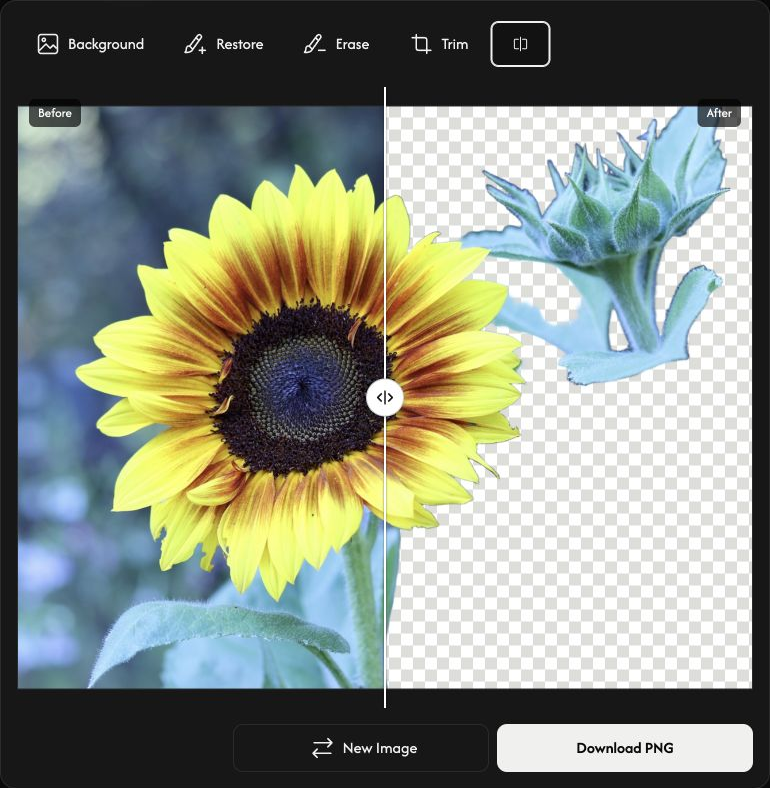
Select Compare, the icon immediately after Trim in the toolbar. Move the divider left or right to compare Before on the left with After on the right. Select Compare again or press Escape to close it.
The checkerboard means the area is transparent. The checkerboard, divider, and labels are not included in your download.
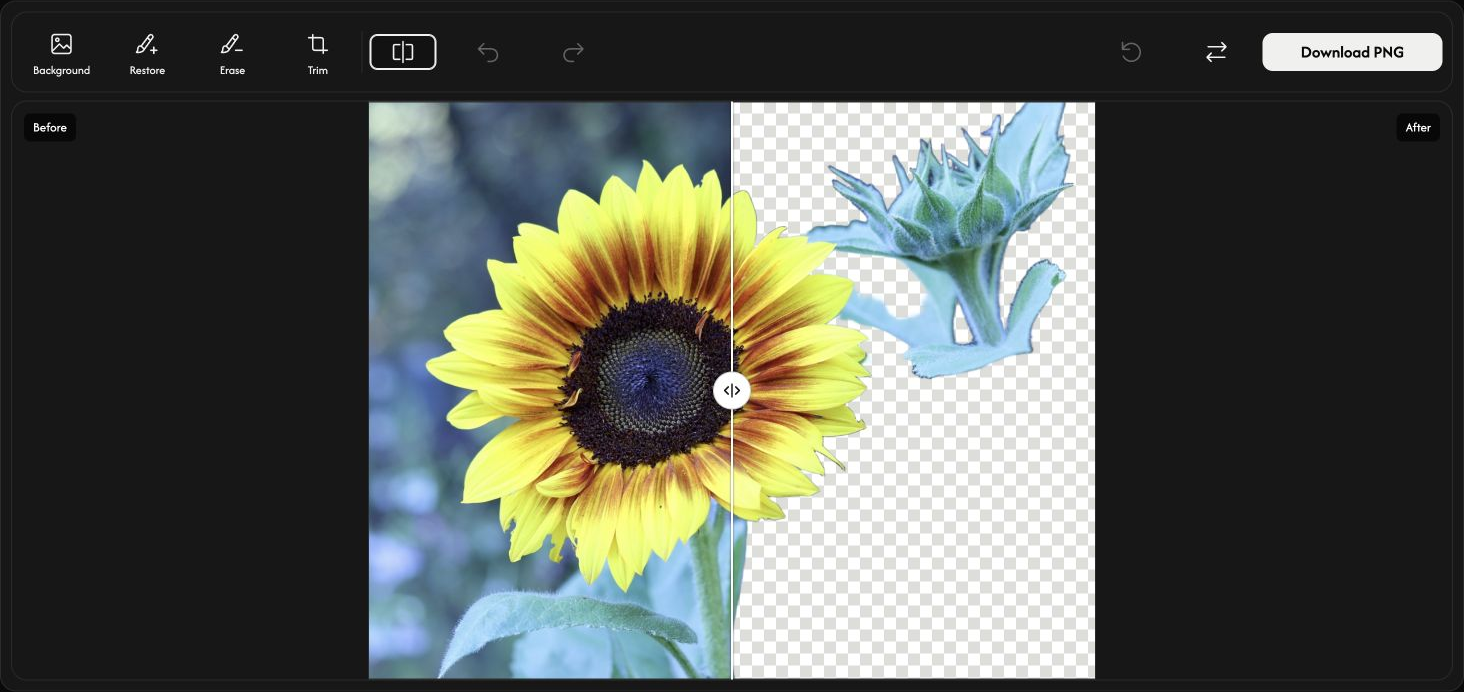
Choose a background — optional
Select Background at the left of the toolbar. Its options open to the right of the image. Keep Transparent for no background, or choose Solid color to fill the removed area.
For a solid background, open the Color swatch. Pick a color or enter RGB, HSV, or HEX values. The preview changes immediately.
Use Output format to choose PNG or JPEG for a solid background. Transparent backgrounds always use PNG. Select Background again to close the options.
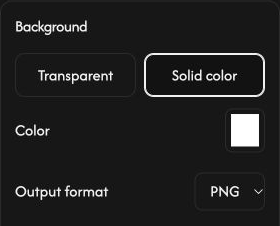
Refine the edges — optional
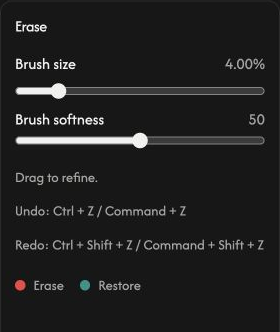
To bring back a missing part, select Restore beside Background, then drag over that area. The original background can return too, so paint only where needed.
To remove an unwanted part, choose Erase beside Restore and paint over it. Choose the active tool again to stop painting and close its options.
In the options to the right of the image, adjust Brush size for the area you want to paint. Increase Brush softness for a softer edge, or lower it for a sharper edge. Both settings apply to Restore and Erase.
Beside Compare, Undo reverses the last brush stroke; Redo reapplies it. They affect brush strokes only, not your other options.
Reset, just before Replace on the toolbar’s right side, keeps your image but clears brush edits and their history. It restores the automatic result and default options.
Trim transparent margins — optional
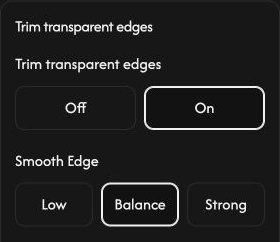
Open Trim beside Erase, then choose On to remove transparent outer margins. The preview and download fit the remaining subject. Choose Off to keep the original canvas size.
Under Smooth Edge, choose Low for a firmer edge, Balance for the default, or Strong for a softer edge. This setting also works with Trim turned off.
Save your image
Choose Download PNG or Download JPEG at the right end of the toolbar. Your current edits and chosen format are included in the saved image.
While Preparing... is shown, wait for the file to finish. The download starts automatically.
For another image, use Replace, the two-arrow icon just left of Download. Save the current result first if you want to keep it; the new result will replace it.
If something goes wrong
If an image cannot be opened or processed, choose an image again from the selection panel. If a download fails, use Try again; the image and edits remain available. Dismiss closes the error message, and Error details shows more information.
Choose an image
Choose Select an image in the center of the panel, or drop an image into it. Background removal starts automatically.
You can open one JPEG, PNG, or WebP file, up to 50 MB.
To stop opening or processing the image, choose Cancel below the progress bar. You will return to the selection panel.
Check the result
Check the subject and its edges. If the result looks right, skip the optional edits and go to Save your image.
Tap Compare, the icon immediately after Trim in the tool row. Move the divider left or right to compare Before on the left with After on the right. Tap Compare again to close it.
The checkerboard means the area is transparent. The checkerboard, divider, and labels are not included in your download.
Choose a background — optional
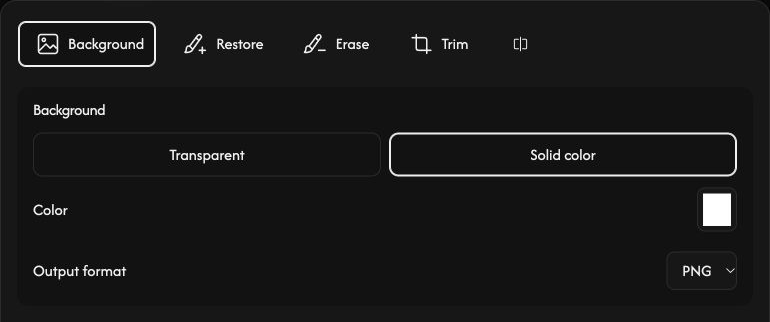
Tap Background at the left of the tool row. Its options open above the image. Keep Transparent for no background, or choose Solid color to fill the removed area.
For a solid background, open the Color swatch. Pick a color or enter RGB, HSV, or HEX values. The preview changes immediately.
Use Output format to choose PNG or JPEG for a solid background. Transparent backgrounds always use PNG. Select Background again to close the options.
Refine the edges — optional
To bring back a missing part, tap Restore beside Background, then paint with your finger or stylus. The original background can return too, so paint only where needed.
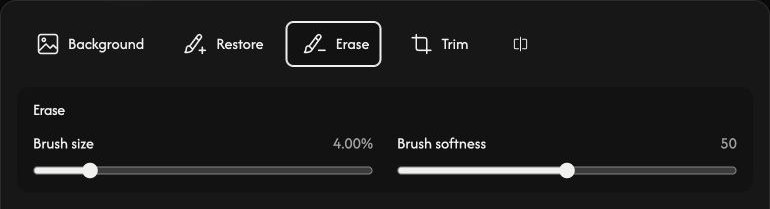
To remove an unwanted part, choose Erase beside Restore and paint over it. Choose the active tool again to stop painting and close its options.
In the options above the image, adjust Brush size for the area you want to paint. Increase Brush softness for a softer edge, or lower it for a sharper edge. Both settings apply to Restore and Erase.
At the top right, Undo reverses the last brush stroke; Redo reapplies it. They affect brush strokes only, not your other options.
Reset, after Undo and Redo at the top right, keeps your image but clears brush edits and their history. It restores the automatic result and default options.
Trim transparent margins — optional
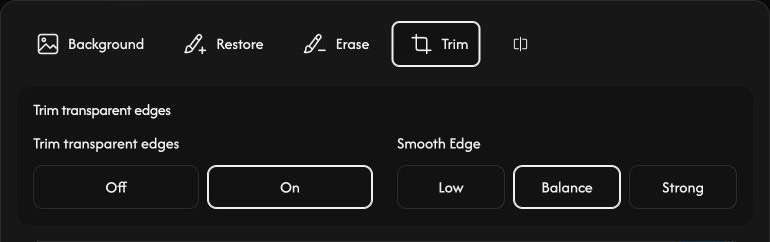
Open Trim beside Erase, then choose On to remove transparent outer margins. The preview and download fit the remaining subject. Choose Off to keep the original canvas size.
Under Smooth Edge, choose Low for a firmer edge, Balance for the default, or Strong for a softer edge. This setting also works with Trim turned off.
Save your image
Tap Download PNG or Download JPEG below the image on the right. Your current edits and chosen format are included in the saved image.
While Preparing... is shown, wait for the file to finish. The download starts automatically.
For another image, tap New Image to the left of Download. Save the current result first if you want to keep it; the new result will replace it.
If something goes wrong
If an image cannot be opened or processed, select an image again from the selection panel. If a download fails, tap Try again; the image and edits remain available. Dismiss closes the error message, and Error details shows more information.
Choose an image
Tap Select an image in the center of the panel and choose one image. Background removal starts automatically.
You can open a JPEG, PNG, or WebP file, up to 50 MB.
To stop opening or processing the image, tap Cancel below the progress bar. You will return to the selection panel.
Check the result
The result opens with Before on the left and After on the right. Drag the round handle on the divider left or right to compare them.
The checkerboard means the area is transparent. The checkerboard, divider, and labels are not included in your saved image.
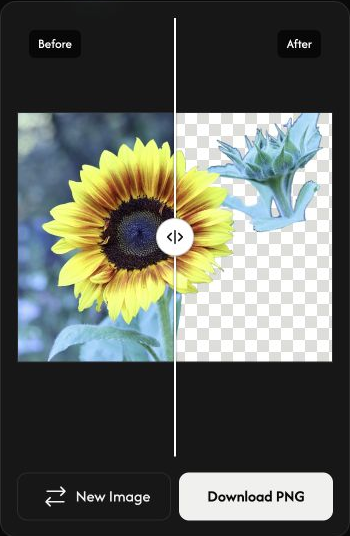
Save your PNG
Tap Download PNG below the preview on the right. The result is saved in PNG format.
While Preparing... is shown, wait for the file to finish. The download starts automatically.
For another image, tap New Image on the left. Save the current result first if you want to keep it; the new result will replace it.
If something goes wrong
If an image cannot be opened or processed, select an image again from the selection panel. If a download fails, tap Try again; your result remains available. Dismiss closes the error message, and Error details shows more information.
Compressor
Reduce the size. Keep the detail.
How to Use Compressor
Choose your images
Choose Select images in the center of the panel, or drop images into it. Wait for the files to open before choosing your settings. Cancel stops opening and returns to image selection.Tap Select images to choose your image files. Wait for the files to open before choosing your settings. Cancel stops opening and returns to image selection.
You can open up to 50 JPEG, PNG, WebP, GIF, or SVG files, up to 50 MB each. Unsupported files are not added to the list or counted. Images already in the list stay unchanged. Animated images must be GIF; APNG and animated WebP are not supported.
Choose a compression level
Choose Level in the toolbar to open Compression Level beside the files.
Start with Balanced. Choose Light for gentler compression, or Maximum for stronger compression.
The next full-list compression uses this level for every file. Adding images keeps your selected level.
Compress and save
Choose Download or Download ZIP at the right end of the toolbar.
Compression starts and the download follows automatically. One image saves as a file; multiple images save together as a ZIP.
Compare the original and compressed sizes in each card. The percentage shows the actual size change; a plus sign means the result is larger.
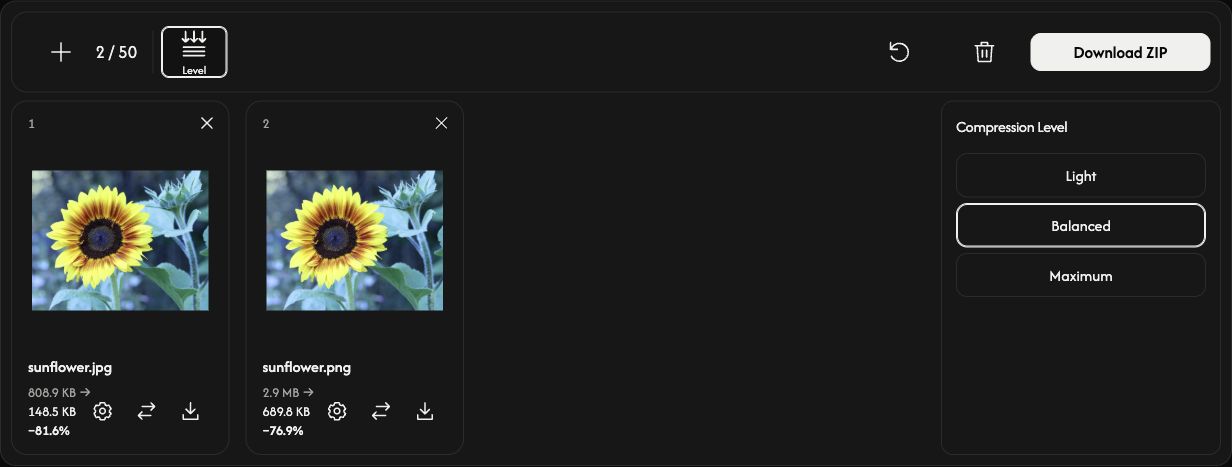
Adjust one image — optional
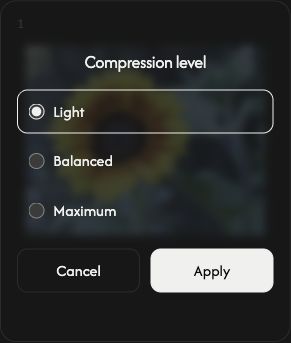
Choose the gear icon in a file card to open that image’s Compression level settings.
Choose a level and Apply to compress that image immediately. Cancel closes the settings without changing it. Other files stay unchanged.
Use the card’s download icon to save its current result. Before compression, this icon saves the original image. The replacement arrows beside it choose another image for that slot.
Add, arrange, or remove images
Use + or Add images above the list to add more images. Each card’s replacement icon changes only that file.
Drag a card to another position to reorder the list. Its image, settings, and result move together.
Use × at the top right of a card to remove that image. The trash icon above the list removes all images after confirmation.
Start the next task
Reset, beside the trash icon, keeps the images and their order but clears the results and restores Balanced. Save any results you want to keep first.
If something goes wrong
If an image cannot be opened, add another file. If compression fails, open that file’s settings and try Apply again, or replace the image. If ZIP creation fails, your available individual results can still be downloaded from their cards.
Resizer
Find the right dimensions.
How to Use Resizer
Choose your images
Choose Select images, or drop images into the panel. Wait for them to open before adjusting their size.Tap Select images to choose your image files. Wait for them to open before adjusting their size.
Add up to 50 JPEG, PNG, WebP, GIF, or SVG files, up to 50 MB each. Animated images must be GIF; APNG and animated WebP are not supported. Unsupported files do not take up a slot.
Set the size for all images
Choose Percent or Pixel in the toolbar. The settings open beside the file list.
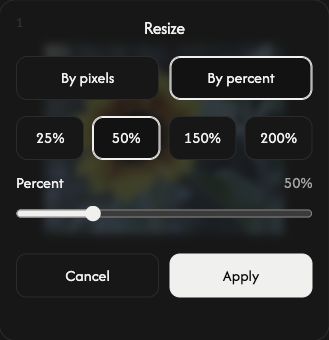
Percent starts at 50%, which halves both width and height. Use the slider or a preset to choose 1–200%.
For an exact size, choose Pixel and enter Width or Height. With Lock Aspect Ratio on, one dimension is enough. For a batch, entering both dimensions fits each image within that box while preserving its proportions.
Turn off Lock Aspect Ratio only when you want an exact width and height that may stretch the image. Do not enlarge prevents upscaling in Pixel mode; it does not limit Percent mode.
Changing a global setting replaces all images’ settings and clears previous results. Set the shared size first, then make any individual adjustments.
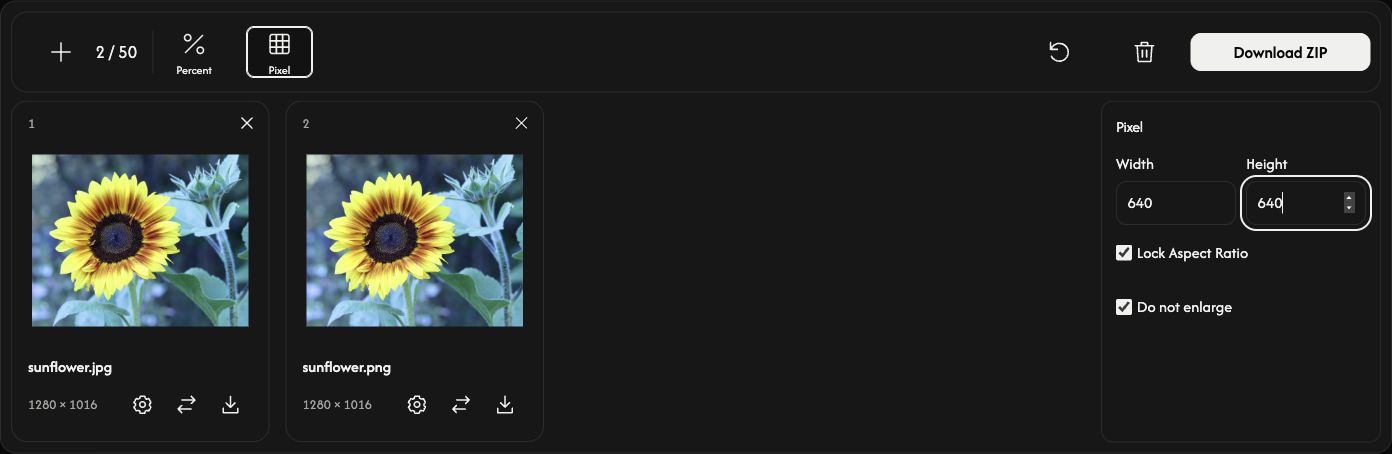
Adjust one image — optional
Choose the gear icon on a card to set a different size for that image.
Choose By pixels or By percent, set the size, then choose Apply to resize that image immediately. Cancel closes the settings without applying your changes.
Other images keep their settings. The main download action includes this individual result.
Resize and save
Choose Download or Download ZIP at the right end of the toolbar.
Images that still need resizing are processed, then saved automatically. One image saves as a file; multiple images save together as a ZIP. The input format is preserved, including GIF animation. Each card shows the original and result dimensions.
A card’s download icon saves its current result. Before that image has been resized, this icon saves the original.
Add, arrange, or remove images
Use + or Add images to add files without changing existing images. New images use the current global settings. The replacement icon changes one card’s image and applies the current global settings to it.
Drag a card to reorder the list. Its image, settings, and result move together.
Use × on a card to remove that image. The trash icon removes all images after confirmation.
Start the next task
Reset, beside the trash icon, keeps the files and their order, clears results, and restores Percent 50%. Save any results you want to keep first.
If something goes wrong
If a file cannot be opened, choose another image. If resizing fails, adjust that image’s size and try Apply again, or replace it. If ZIP creation fails, available results can still be saved using the cards’ download icons.
Image to PDF
Bring your images into one document.
or drop images here
Supports JPEG, PNG, WebP, AVIF, and HEIC/HEIF · Up to 50 MB per file
How to Use Image to PDF
Choose your images
Choose Select images, or drop images into the panel. Add up to 50 JPEG, PNG, WebP, AVIF, or HEIC/HEIF files, up to 50 MB each. Animated images and PDF files are not supported.Tap Select images to choose your image files. Add up to 50 JPEG, PNG, WebP, AVIF, or HEIC/HEIF files, up to 50 MB each. Animated images and PDF files are not supported.
Wait for the images to open. Each image becomes one PDF page. Unsupported or unreadable files do not take up a slot.
Arrange your pages
Drag a card to its new position to change the PDF page order.
The curved arrow on a card rotates that image clockwise by 90°. Check the page numbers and previews before saving.
Choose the page size
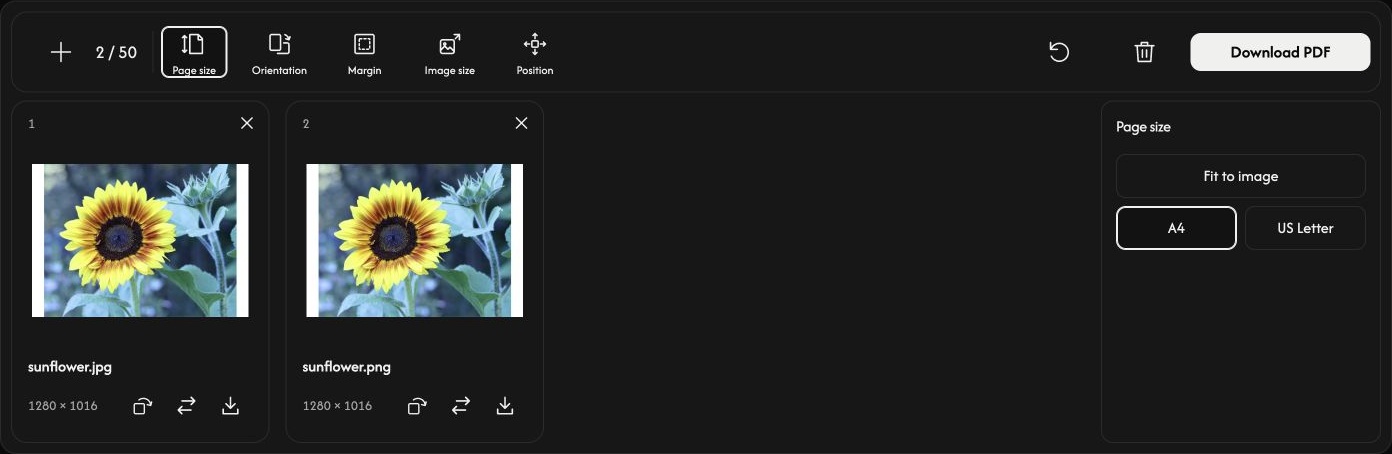
Choose Page size in the toolbar. Options open beside the page previews and apply to every page.
The default Fit to image sizes each page to its image. Orientation, Image size, and Position are disabled in this mode; Margin can still add space around the image.
Choose A4 or US Letter for standard paper. Set Orientation to Auto, Portrait, or Landscape. Auto chooses the direction separately for each image, including its rotation.
Adjust the space around each image
Margin offers None, Small, or Large. The previews update as you change the settings.
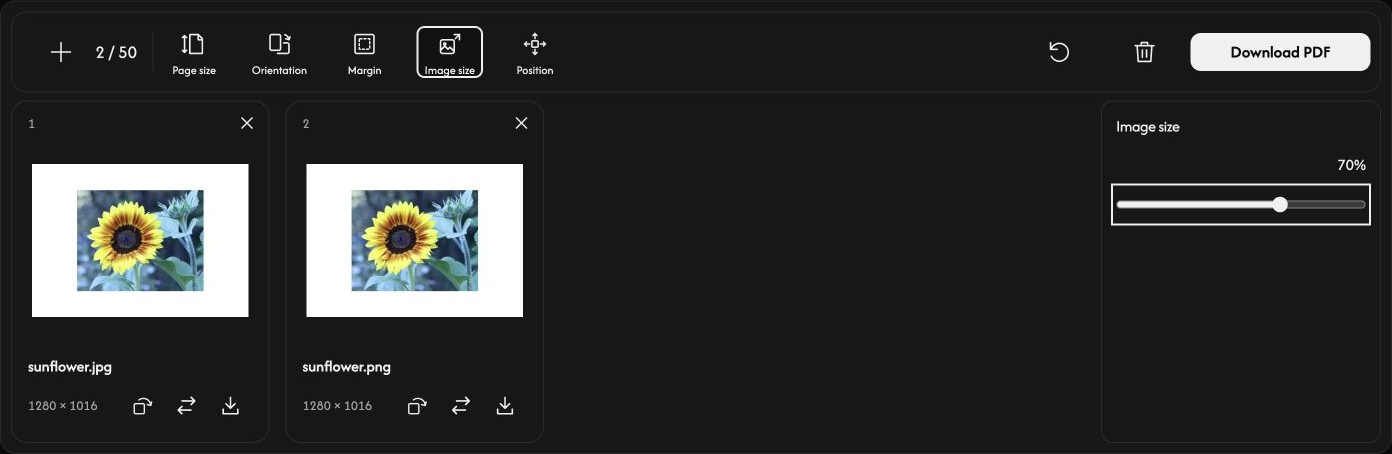
With A4 or US Letter, Image size adjusts the image from 10–100% of the space it can fit into inside the margins. The image keeps its proportions. This percentage is not a change to the original file’s pixel dimensions.
Use Position to place the image at the center, an edge, or a corner. A smaller image size makes the surrounding space and position easier to see.
Save your PDF
Choose Download PDF at the right end of the toolbar.
All pages are converted and saved together as one PDF in the order shown, using the current settings and rotations. A card’s download icon saves only that page as a separate PDF.
If your browser opens a PDF preview instead of saving immediately, use its download or share control to save the file.
Add or change images
Use + or Add images to append images while keeping the current page settings. The replacement icon changes one image in the same position; that image’s rotation returns to its starting direction.
Use × on a card to remove that page. The trash icon removes all images after confirmation and keeps the page settings. Your original files remain on your device.
Reset, beside the trash icon, keeps the images and their order, restores the default page settings, and resets all rotations.
If something goes wrong
If an image cannot be opened, replace it with a supported image. If PDF creation fails, follow the displayed message, use fewer or smaller images if needed, then try Download PDF again.
Image to JPG
Turn your images into JPG.
or drop images here
Supports PNG, WebP, SVG, AVIF, and HEIC/HEIF · Up to 50 MB per file
How to Use Image to JPG
Choose your images
Choose Select images, or drop images into the panel. Add up to 50 PNG, WebP, SVG, AVIF, or HEIC/HEIF files, up to 50 MB each. JPG/JPEG, GIF, animated images, and PDF files are not supported.Tap Select images to choose your image files. Add up to 50 PNG, WebP, SVG, AVIF, or HEIC/HEIF files, up to 50 MB each. JPG/JPEG, GIF, animated images, and PDF files are not supported.
Wait for the previews to open. Conversion starts when you download, so you can arrange or rotate your images first.
Arrange the images
Drag a card to a new position. The numbered order is also used in the ZIP file.
Rotate if needed
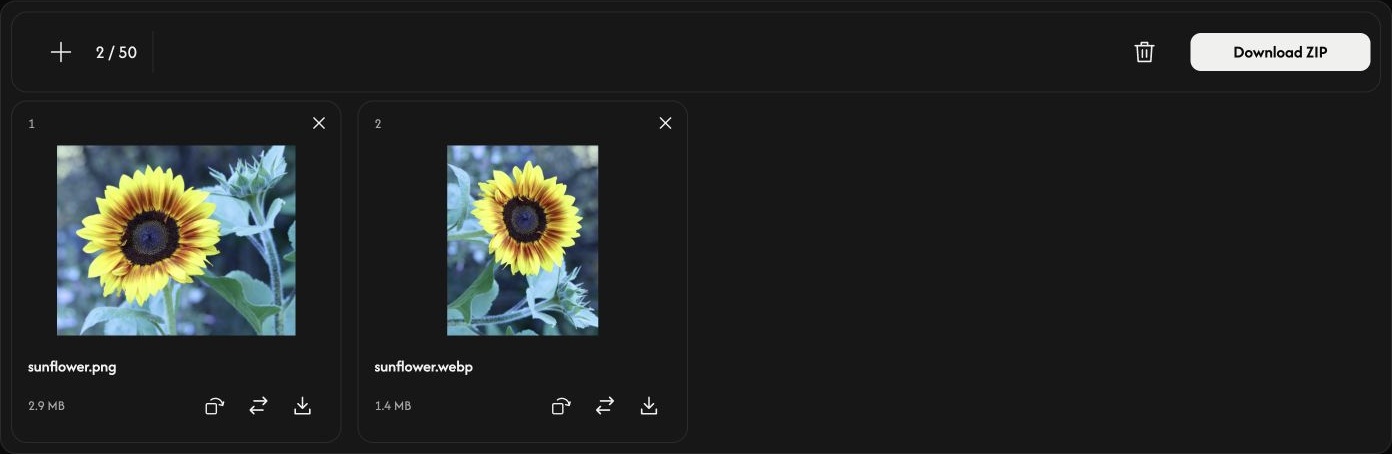
The curved arrow on a card rotates the image clockwise by 90°. Check its preview before saving. Each image keeps its original pixel dimensions, with width and height swapped when rotated by 90° or 270°.
Transparent areas become white in the JPG. There are no quality or size settings to adjust.
Convert and save
Use Download or Download ZIP at the right end of the toolbar.
One image saves as a JPG; multiple images save together in a ZIP. A card’s download arrow converts and saves only that image. Wait for conversion and the browser download to finish.
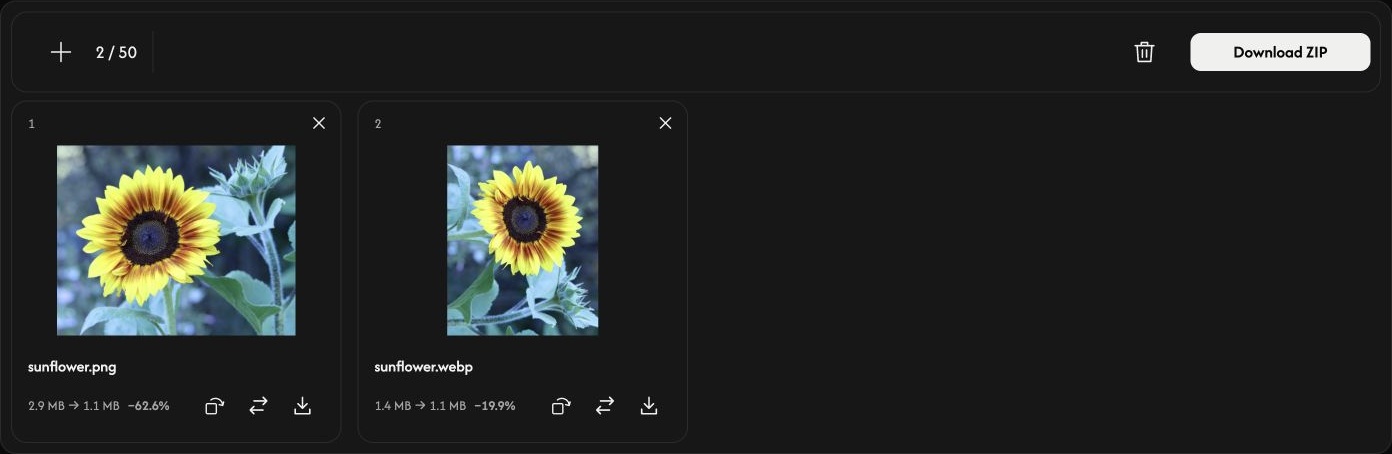
After conversion, each card shows the original and JPG file sizes. A JPG can be larger than the source image.
Add, replace, or remove images
Use + or Add images to append images. The replacement icon changes one image in the same position and resets that image’s rotation.
Use × on a card to remove it. The trash icon removes all images after confirmation; you can then add another batch. Your original files remain on your device.
If something goes wrong
Unsupported or unreadable files do not take up a slot. A rejected addition or replacement keeps the existing images and results. Follow the displayed message, choose a supported image or use fewer or smaller images, then try downloading again.
Image to PNG
Turn your images into PNG.
or drop images here
Supports JPEG, WebP, AVIF, HEIC, and HEIF · Up to 50 MB per file
How to Use Image to PNG
Choose your images
Choose Select images, or drop images into the panel. Add up to 50 still JPEG, WebP, AVIF, or HEIC/HEIF files, up to 50 MB each. PNG, APNG, GIF, SVG, animated images, and PDF files are not supported.Tap Select images to choose your image files. Add up to 50 still JPEG, WebP, AVIF, or HEIC/HEIF files, up to 50 MB each. PNG, APNG, GIF, SVG, animated images, and PDF files are not supported.
Wait for the previews to open. Conversion starts when you download, so you can arrange or rotate your images first.
Arrange the images
Drag a card to a new position. The numbered order is also used in the ZIP file.
Rotate if needed
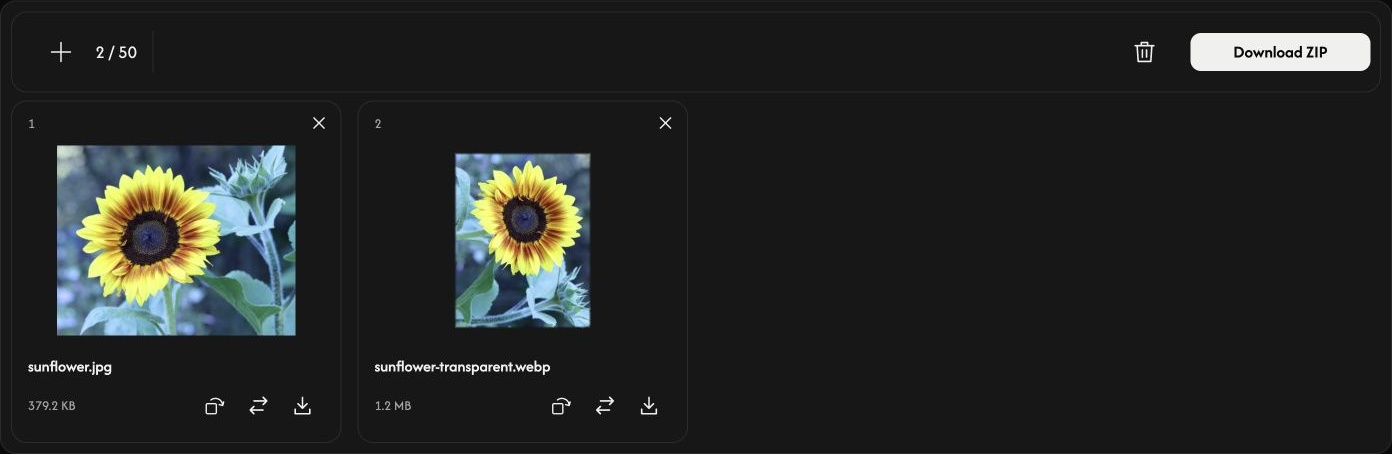
The curved arrow on a card rotates the image clockwise by 90°. Check its preview before saving. Each image keeps its original pixel dimensions, with width and height swapped when rotated by 90° or 270°.
PNG preserves transparent areas. The output is lossless, but it does not restore detail missing from the original. There are no quality or size settings to adjust.
Convert and save
Use Download or Download ZIP at the right end of the toolbar.
One image saves as a PNG; multiple images save together in a ZIP. A card’s download arrow converts and saves only that image. Wait for conversion and the browser download to finish.
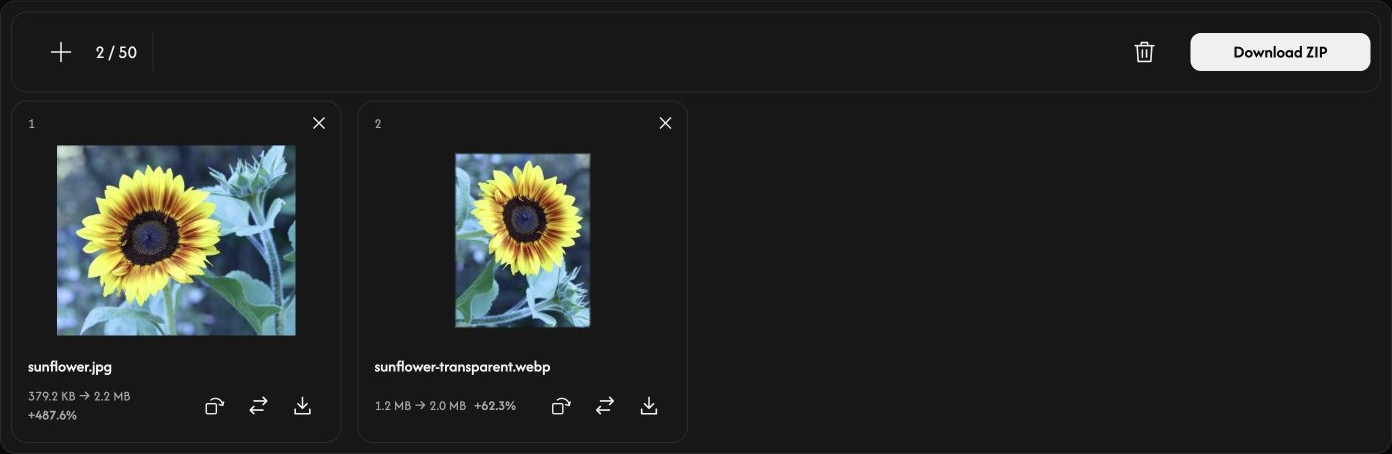
After conversion, each card shows the original and PNG file sizes. A PNG can be larger than the source image.
Add, replace, or remove images
Use + or Add images to append images. The replacement icon changes one image in the same position and resets that image’s rotation.
Use × on a card to remove it. The trash icon removes all images after confirmation; you can then add another batch. Your original files remain on your device.
If something goes wrong
Unsupported or unreadable files do not take up a slot. A rejected addition or replacement keeps the existing images and results. Follow the displayed message, choose a supported image or use fewer or smaller images, then try downloading again.
Image to WebP
Turn your images into WebP.
or drop images here
Supports JPEG, PNG, SVG, AVIF, and HEIC/HEIF · Up to 50 MB per file
How to Use Image to WebP
Choose your images
Choose Select images, or drop images into the panel. Add up to 50 still JPEG, PNG, SVG, AVIF, or HEIC/HEIF files, up to 50 MB each. WebP, APNG, GIF, animated images, and PDF files are not supported.Tap Select images to choose your image files. Add up to 50 still JPEG, PNG, SVG, AVIF, or HEIC/HEIF files, up to 50 MB each. WebP, APNG, GIF, animated images, and PDF files are not supported.
Wait for the previews to open. Conversion starts when you download, so you can arrange or rotate your images first.
Arrange the images
Drag a card to a new position. The numbered order is also used in the ZIP file.
Rotate if needed
The curved arrow on a card rotates the image clockwise by 90°. Check its preview before saving. Raster images keep their pixel dimensions; SVGs are converted to pixels. Rotating by 90° or 270° swaps width and height.
WebP preserves transparent areas. The output is lossless, but it does not restore detail missing from the original. There are no quality or size settings to adjust.
Convert and save
Use Download or Download ZIP at the right end of the toolbar.
One image saves as a WebP; multiple images save together in a ZIP. A card’s download arrow converts and saves only that image. Wait for conversion and the browser download to finish.
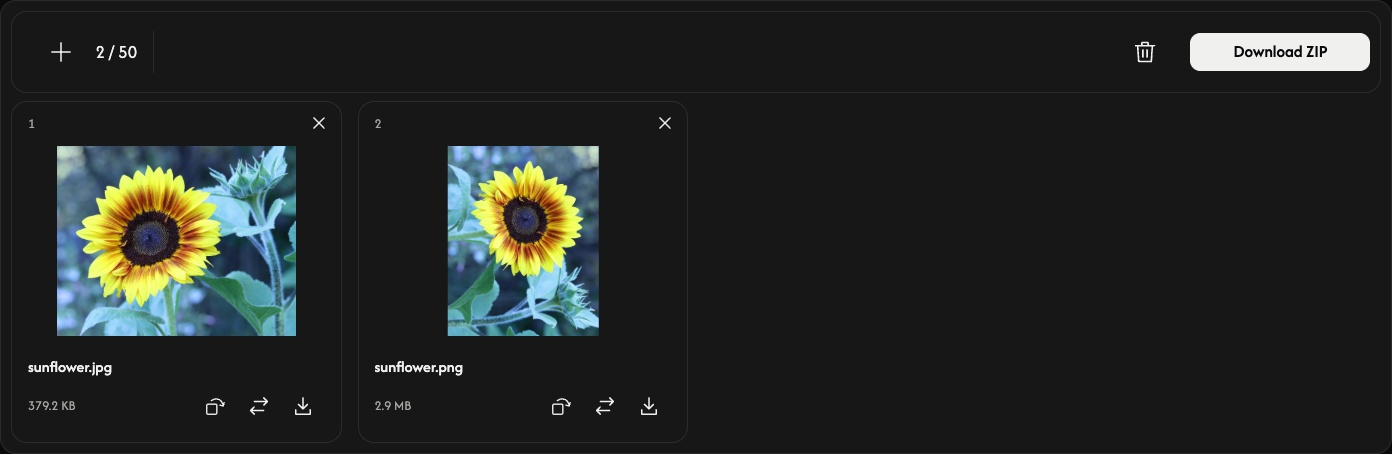
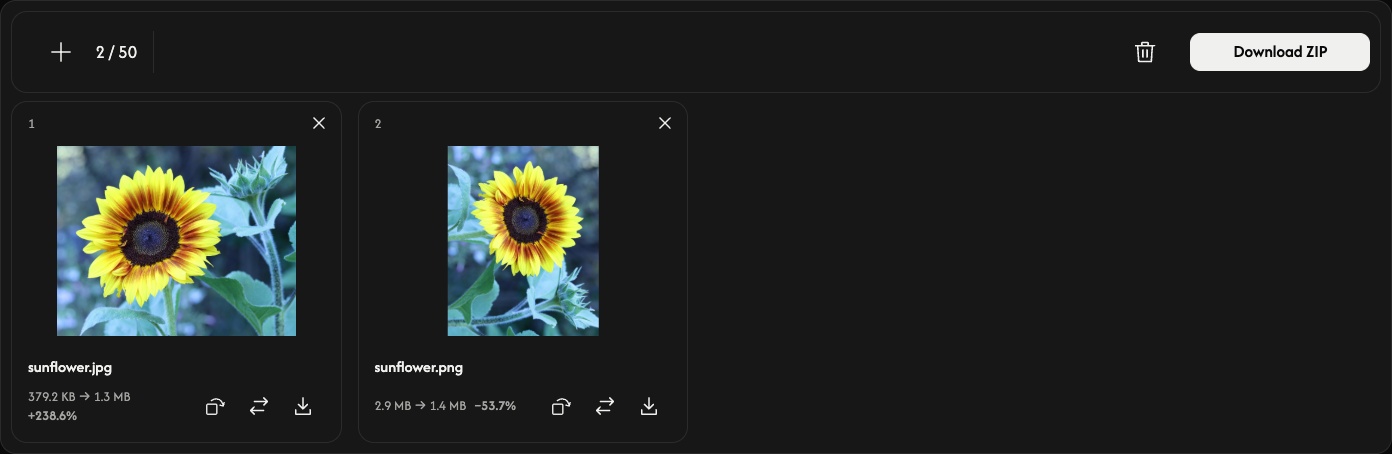
After conversion, each card shows the original and WebP file sizes. A WebP can be larger than the source image.
Add, replace, or remove images
Use + or Add images to append images. The replacement icon changes one image in the same position and resets that image’s rotation.
Use × on a card to remove it. The trash icon removes all images after confirmation; you can then add another batch. Your original files remain on your device.
If something goes wrong
Unsupported or unreadable files do not take up a slot. A rejected addition or replacement keeps the existing images and results. Follow the displayed message, choose a supported image or use fewer or smaller images, then try downloading again.
Image to AVIF
Turn your images into AVIF.
or drop images here
Supports JPEG, PNG, WebP, SVG, and HEIC/HEIF · Up to 50 MB per file
How to Use Image to AVIF
Choose your images
Choose Select images, or drop images into the panel. Add up to 50 still JPEG, PNG, WebP, SVG, or HEIC/HEIF files, up to 50 MB each. AVIF, APNG, GIF, animated images, and PDF files are not supported.Tap Select images to choose your image files. Add up to 50 still JPEG, PNG, WebP, SVG, or HEIC/HEIF files, up to 50 MB each. AVIF, APNG, GIF, animated images, and PDF files are not supported.
Wait for the previews to open. Conversion starts when you download, so you can arrange or rotate your images first.
Arrange the images
Drag a card to a new position. The numbered order is also used in the ZIP file.
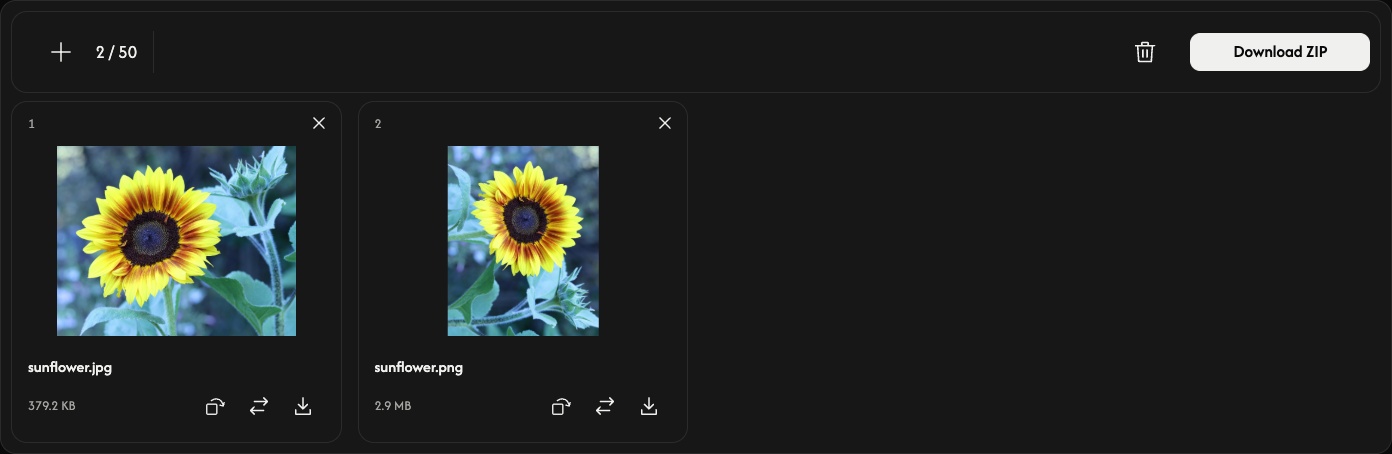
Rotate if needed
The curved arrow on a card rotates the image clockwise by 90°. Check its preview before saving. Raster images keep their pixel dimensions; SVGs are converted to pixels. Rotating by 90° or 270° swaps width and height.
AVIF preserves transparent areas. The output is lossless, but it does not restore detail missing from the original. There are no quality or size settings to adjust.
Convert and save
Use Download or Download ZIP at the right end of the toolbar.
One image saves as an AVIF; multiple images save together in a ZIP. A card’s download arrow converts and saves only that image. Wait for conversion and the browser download to finish.
After conversion, each card shows the original and AVIF file sizes. An AVIF can be larger than the source image.
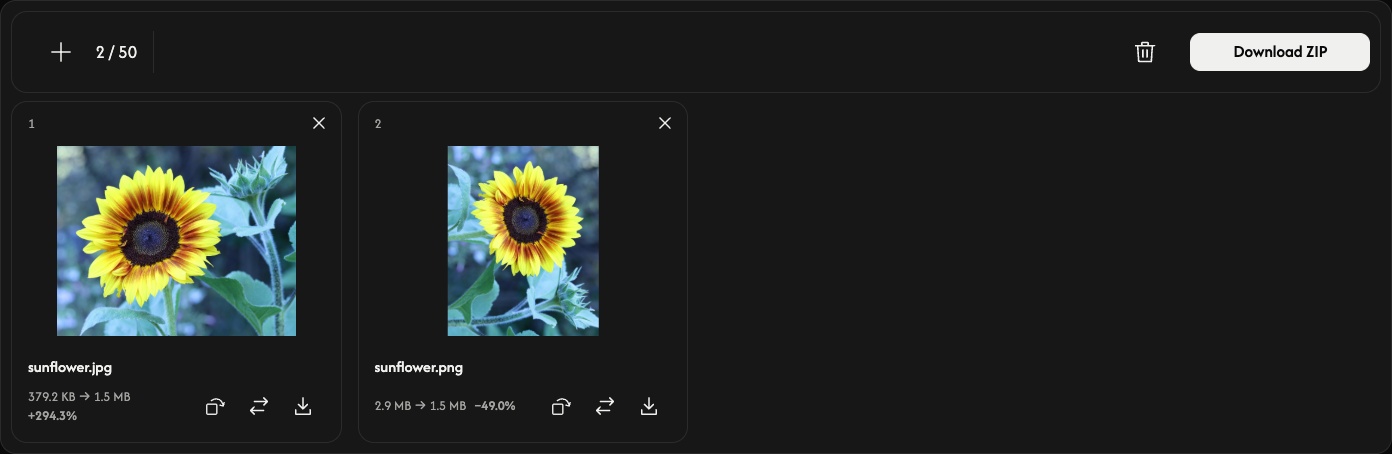
Add, replace, or remove images
Use + or Add images to append images. The replacement icon changes one image in the same position and resets that image’s rotation.
Use × on a card to remove it. The trash icon removes all images after confirmation; you can then add another batch. Your original files remain on your device.
If something goes wrong
Unsupported or unreadable files do not take up a slot. A rejected addition or replacement keeps the existing images and results. Follow the displayed message, choose a supported image or use fewer or smaller images, then try downloading again.
AI Upscaler
More pixels for your next idea.
or drop an image here
Supports JPEG, PNG, and WebP · Up to 50 MB per file
How to Use AI Upscaler
Choose an image
Choose Select an image, or drop one still JPEG, PNG, or WebP image into the panel. Files can be up to 50 MB. Animated images and other formats are not supported.Tap Select an image to choose your image files. Choose one still image file (JPEG, PNG, WebP). Files can be up to 50 MB. Animated images and other formats are not supported.
AI processing starts automatically and doubles both the width and height. Wait for the result before comparing or downloading. Your image is processed in your browser.
Compare the result
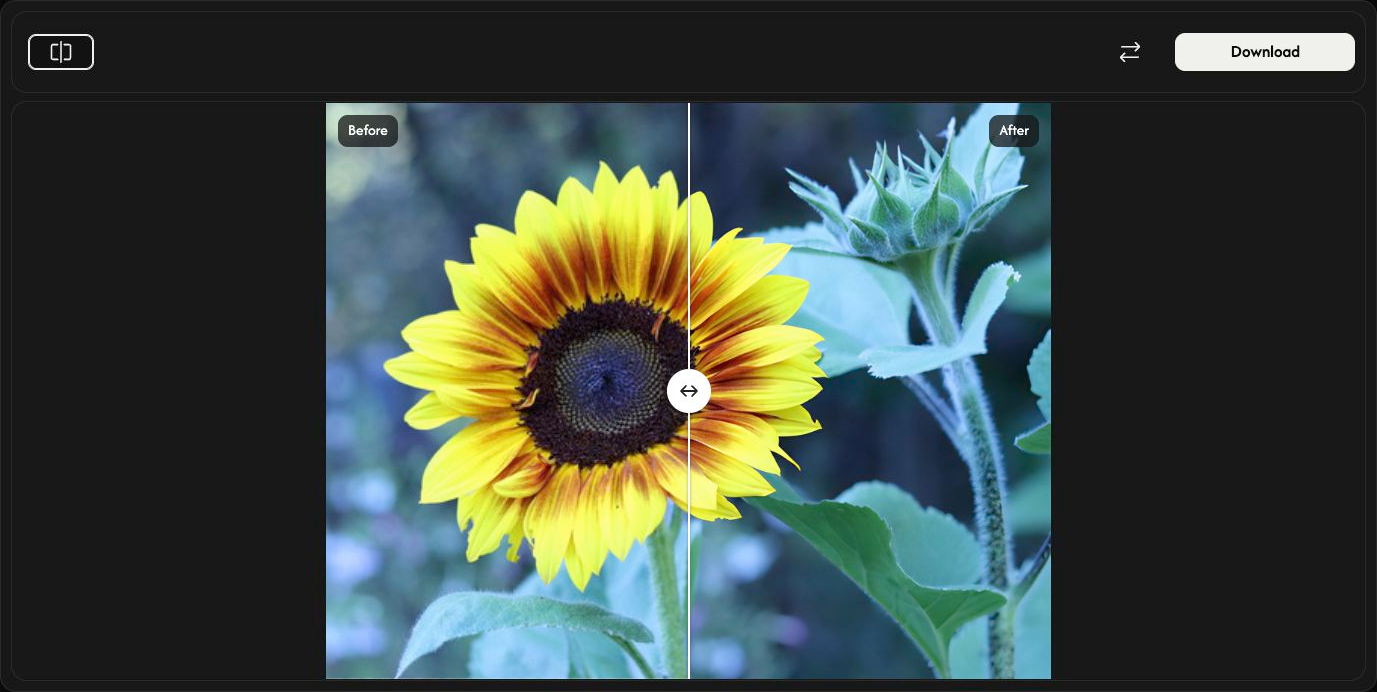
Drag the divider to compare Before on the left with After on the right. Compare switches between the comparison and the result alone. You can also focus the divider and use the arrow keys.
Changing the preview does not change the saved image or run AI again.
Save the enlarged image
Choose Download at the right of the toolbar and wait for the browser download to finish.
The image is saved at 2× its original width and height in the same format: JPEG, PNG, or WebP. PNG and WebP keep transparency. Your original file is unchanged.
Choose another image
Use Replace to select another image. It is enlarged automatically. Save the current result first if you want to keep it.
Cancel stops processing. For the first image, this returns to the selection panel. During replacement processing, the new original remains but there is no result to download; choose an image again to restart.
If something goes wrong
Follow the displayed message and choose a supported or smaller image. Cancelling the file chooser or selecting an invalid replacement keeps the existing image and result. Drop only one image at a time.Follow the displayed message and choose a supported or smaller image. Cancelling the file chooser or selecting an invalid replacement keeps the existing image and result.
Crop
Keep the part that matters.
or drop an image here
Supports JPEG, PNG, WebP, AVIF, and HEIC/HEIF · Up to 50 MB per file
How to Use Crop
Choose an image
Choose Select an image, or drop one still JPEG, PNG, WebP, AVIF, or HEIC/HEIF image into the panel. The limit is 50 MB per file. Your image stays in your browser.Tap Select an image to choose your image files. Choose one still image file (JPEG, PNG, WebP, AVIF, HEIC/HEIF). The limit is 50 MB per file. Your image stays in your browser.
Choose a shape and ratio
Open Shape. Choose Rectangle and FREE to set width and height separately, or choose a fixed ratio such as 4:3. Circle keeps a round area.
For an irregular shape, choose Lasso and drag around the area to keep. Release to close the outline. Drawing again replaces the outline.
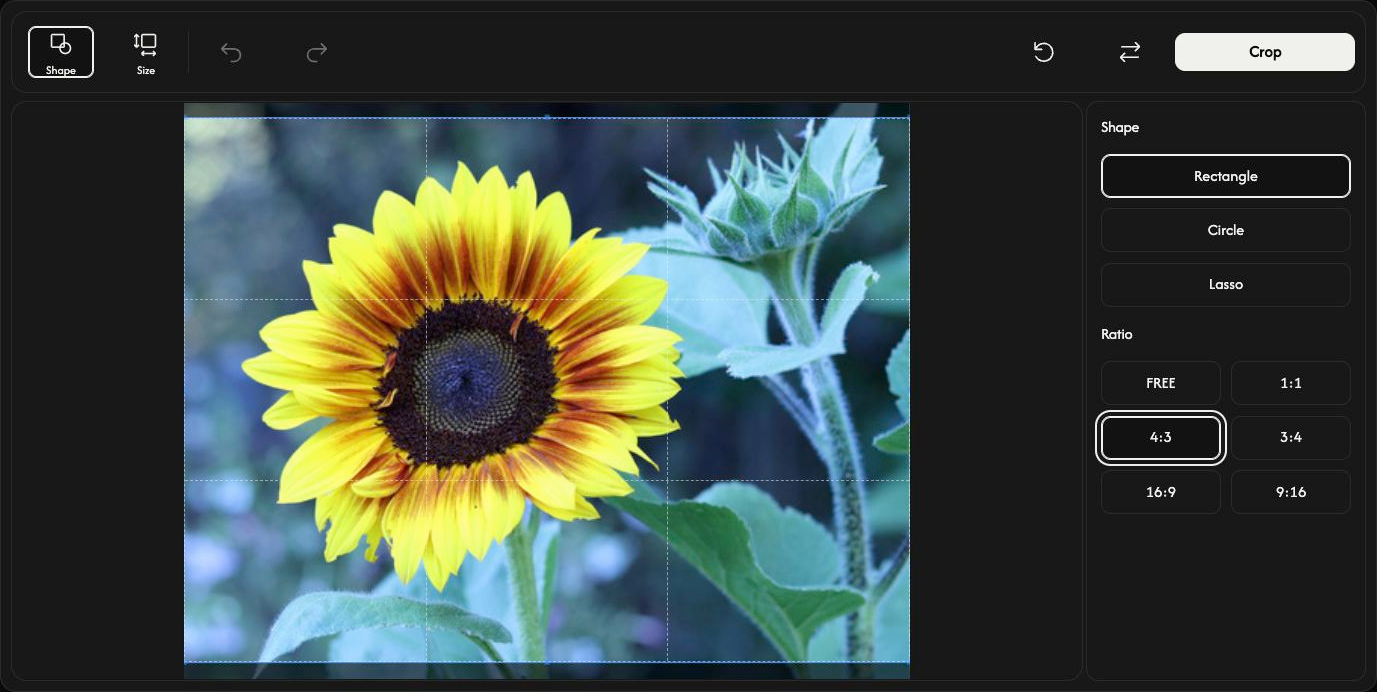
Adjust the area to keep
Drag inside the rectangle or circle to move it. Drag its edge or corner handles to resize it. The image itself stays in place.
For exact values, open Size. X and Y set the starting position; width and height set the crop size in pixels. A fixed ratio links width and height. Close Size to resize with the handles again. Size controls are unavailable for Lasso.
Preview the crop
Choose Crop to see the result. The same button changes to Download. Undo returns to editing; Redo restores the applied crop. Reset keeps the image and restores the starting selection and settings.
Save your image
Choose Download at the right of the toolbar and wait for the browser download to finish. Use Replace to choose another image after saving.
The output format is chosen automatically. JPEG becomes PNG when you choose Circle or Lasso, so the area outside the shape stays transparent. HEIC/HEIF becomes JPEG, or PNG if it has transparency. PNG, WebP, and AVIF keep their formats. The original file is unchanged.
If something goes wrong
Follow the cause and action in the displayed message. Choose only one supported still image at a time. Cancelling the file chooser or choosing an invalid replacement keeps your current image. Save the result before leaving the page.