


Rotate & Flip
Turn or mirror your images.
or drop images here
Supports JPEG, PNG, WebP, AVIF, and HEIC/HEIF · Up to 40 MB per file
How to Use Rotate & Flip
Choose your images
Choose Select images, or drop images into the panel.
Choose up to 20 still JPEG, PNG, WebP, AVIF, or HEIC/HEIF images, up to 40 MB each. GIF, SVG, and animated images are not supported.
Rotate or flip all images
Use the controls in the top toolbar.
Rotate Left and Rotate Right turn images 90° each time.
Flip Vertical swaps top and bottom. Flip Horizontal mirrors left and right.
Each top control adds its change to every loaded image’s current edits.
Adjust one image
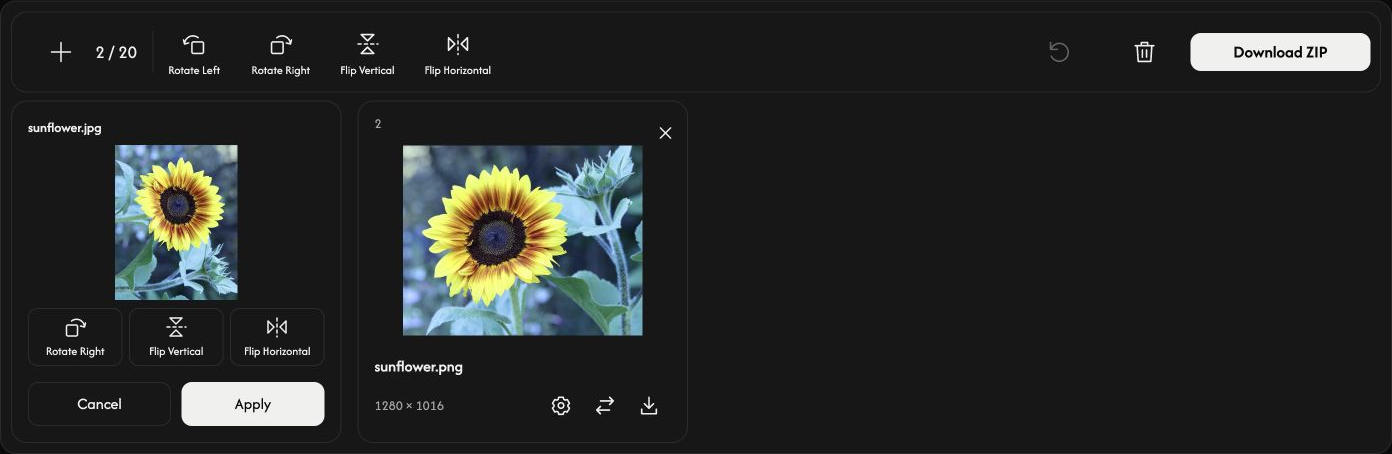
Open a card’s gear icon. Preview Rotate Right, Flip Vertical, or Flip Horizontal. Apply keeps those edits for this image only; Cancel discards them. Saving starts when you download.
Save images
Choose Download or Download ZIP at the right end of the toolbar.
Download processes the full-size images. One successful result saves as a file; two or more save together as a ZIP. Unchanged images are included as their originals.
A card’s download icon processes and saves only that image.
Edited JPEG, PNG, WebP, and AVIF keep their format. Edited HEIC/HEIF saves as JPG, or PNG when transparent.
While preparing a download, Cancel stops processing and keeps your images and edits.
Add, arrange, or remove images
Use + or Add images to add images in their original orientation. Existing edits stay.
The replacement icon changes one card’s image and keeps its edits. If the replacement is rejected, the previous image stays.
Drag a card to reorder the list. Its image, settings, and result move together.
Use × on a card to remove that image. The trash icon removes all images after confirmation.
Start the next task
Reset keeps the files and their order, clears prepared results, and restores the original orientation.
If something goes wrong
Read the rejected filename and reason, then choose a supported or smaller file. Rejected files do not occupy slots. If ZIP creation fails, save images using the cards’ download icons.