


Images
Background Remover
Remove a background. Make room for your subject.
Compressor
Reduce the size. Keep the detail.
Resizer
Find the right dimensions.
Image to PDF
Bring your images into one document.
Image to JPG
Convert images to JPG.
Image to PNG
Convert images to PNG.
Image to WebP
Convert images to WebP.
Image to AVIF
Convert images to AVIF.
AI Upscaler
More pixels for your next idea.
Crop
Keep the part that matters.
Collage Maker
Arrange your photos in a collage.
GIF Maker
Animate a sequence of images.
- Coming soon
Add Text & Watermark
Add words or a watermark.
Image to JPG
Turn your images into JPG.
or drop images here
Supports PNG, WebP, SVG, AVIF, and HEIC/HEIF · Up to 50 MB per file
How to Use Image to JPG
Choose your images
Choose Select images, or drop images into the panel. Add up to 50 PNG, WebP, SVG, AVIF, or HEIC/HEIF files, up to 50 MB each. JPG/JPEG, GIF, animated images, and PDF files are not supported.
Wait for the previews to open. Conversion starts when you download, so you can arrange or rotate your images first.
Arrange the images
Drag a card to a new position. The numbered order is also used in the ZIP file.
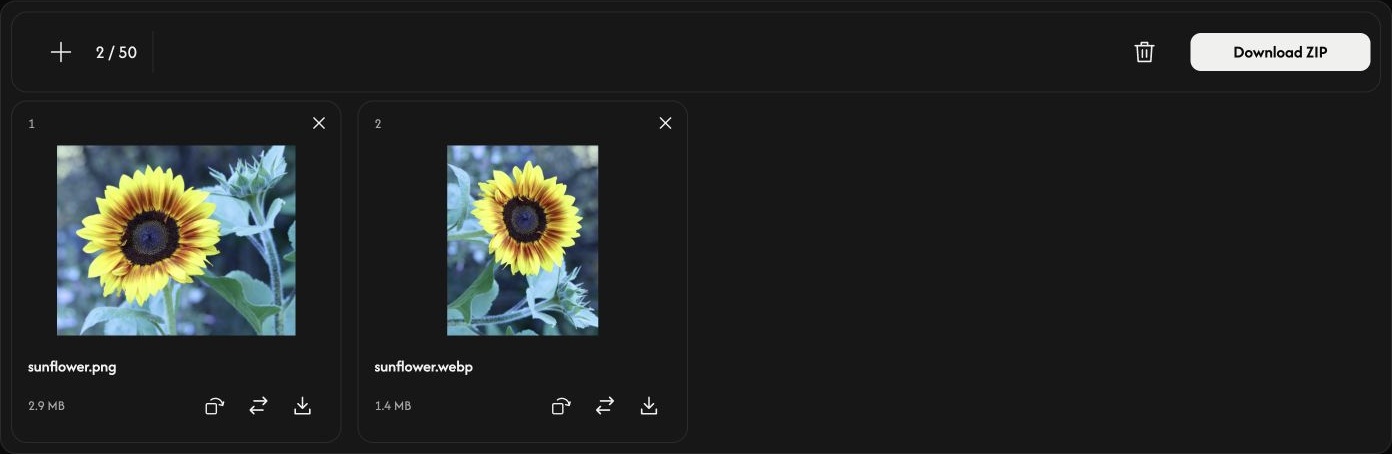
Rotate if needed
The curved arrow on a card rotates the image clockwise by 90°. Check its preview before saving. Each image keeps its original pixel dimensions, with width and height swapped when rotated by 90° or 270°.
Transparent areas become white in the JPG. There are no quality or size settings to adjust.
Convert and save
Use Download or Download ZIP at the right end of the toolbar.
One image saves as a JPG; multiple images save together in a ZIP. A card’s download arrow converts and saves only that image. Wait for conversion and the browser download to finish.
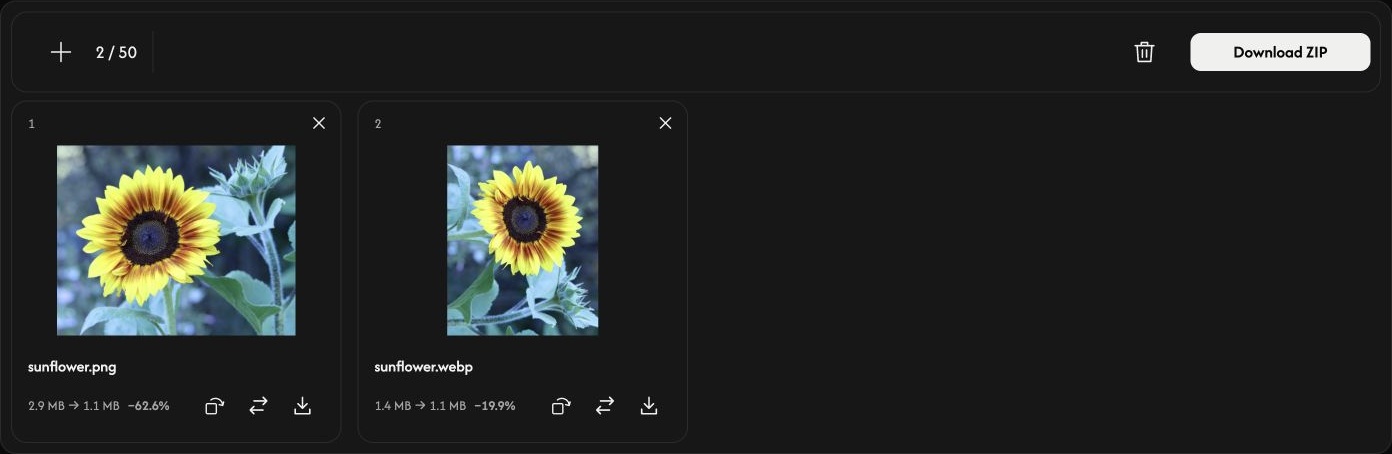
After conversion, each card shows the original and JPG file sizes. A JPG can be larger than the source image.
Add, replace, or remove images
Use + or Add images to append images. The replacement icon changes one image in the same position and resets that image’s rotation.
Use × on a card to remove it. The trash icon removes all images after confirmation; you can then add another batch. Your original files remain on your device.
If something goes wrong
Unsupported or unreadable files do not take up a slot. A rejected addition or replacement keeps the existing images and results. Follow the displayed message, choose a supported image or use fewer or smaller images, then try downloading again.