


Images
Background Remover
Remove a background. Make room for your subject.
Compressor
Reduce the size. Keep the detail.
Resizer
Find the right dimensions.
Image to PDF
Bring your images into one document.
Image to JPG
Convert images to JPG.
Image to PNG
Convert images to PNG.
Image to WebP
Convert images to WebP.
Image to AVIF
Convert images to AVIF.
AI Upscaler
More pixels for your next idea.
Crop
Keep the part that matters.
Collage Maker
Arrange your photos in a collage.
GIF Maker
Animate a sequence of images.
- Coming soon
Add Text & Watermark
Add words or a watermark.
Compressor
Reduce the size. Keep the detail.
How to Use Compressor
Choose your images
Choose Select images in the center of the panel, or drop images into it. Wait for the files to open before choosing your settings. Cancel stops opening and returns to image selection.
You can open up to 50 JPEG, PNG, WebP, GIF, or SVG files, up to 50 MB each. Unsupported files are not added to the list or counted. Images already in the list stay unchanged. Animated images must be GIF; APNG and animated WebP are not supported.
Choose a compression level
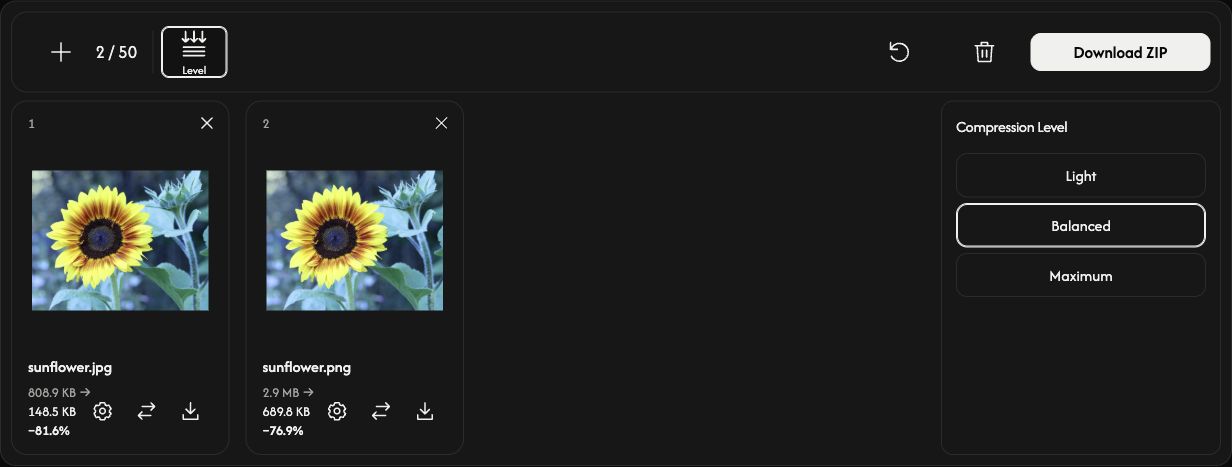
Choose Level in the toolbar to open Compression Level beside the files.
Start with Balanced. Choose Light for gentler compression, or Maximum for stronger compression.
The next full-list compression uses this level for every file. Adding images keeps your selected level.
Compress and save
Choose Download or Download ZIP at the right end of the toolbar.
Compression starts and the download follows automatically. One image saves as a file; multiple images save together as a ZIP.
Compare the original and compressed sizes in each card. The percentage shows the actual size change; a plus sign means the result is larger.
Adjust one image — optional
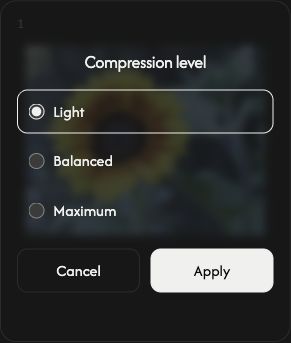
Choose the gear icon in a file card to open that image’s Compression level settings.
Choose a level and Apply to compress that image immediately. Cancel closes the settings without changing it. Other files stay unchanged.
Use the card’s download icon to save its current result. Before compression, this icon saves the original image. The replacement arrows beside it choose another image for that slot.
Add, arrange, or remove images
Use + or Add images above the list to add more images. Each card’s replacement icon changes only that file.
Drag a card to another position to reorder the list. Its image, settings, and result move together.
Use × at the top right of a card to remove that image. The trash icon above the list removes all images after confirmation.
Start the next task
Reset, beside the trash icon, keeps the images and their order but clears the results and restores Balanced. Save any results you want to keep first.
If something goes wrong
If an image cannot be opened, add another file. If compression fails, open that file’s settings and try Apply again, or replace the image. If ZIP creation fails, your available individual results can still be downloaded from their cards.