

Images
Background Remover
Remove a background. Make room for your subject.
Compressor
Reduce the size. Keep the detail.
Resizer
Find the right dimensions.
Image to PDF
Bring your images into one document.
Image to JPG
Convert images to JPG.
Image to PNG
Convert images to PNG.
Image to WebP
Convert images to WebP.
Image to AVIF
Convert images to AVIF.
AI Upscaler
More pixels for your next idea.
Crop
Keep the part that matters.
Collage Maker
Arrange your photos in a collage.
GIF Maker
Animate a sequence of images.
- Coming soon
Add Text & Watermark
Add words or a watermark.
Resizer
Find the right dimensions.
How to Use Resizer
Choose your images
Choose Select images, or drop images into the panel. Wait for them to open before adjusting their size.
Add up to 50 JPEG, PNG, WebP, GIF, or SVG files, up to 50 MB each. Animated images must be GIF; APNG and animated WebP are not supported. Unsupported files do not take up a slot.
Set the size for all images
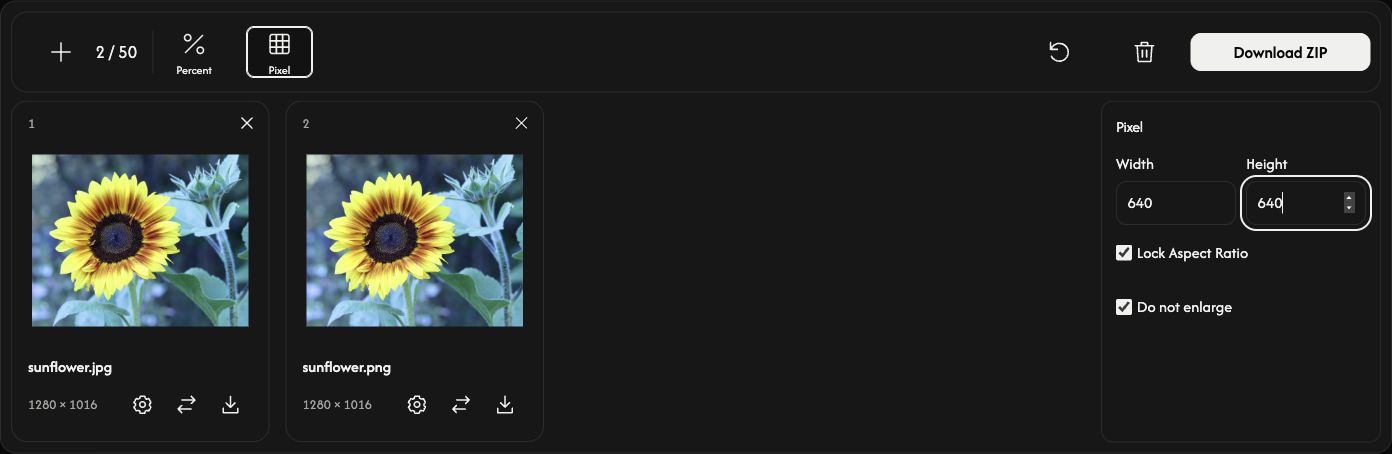
Choose Percent or Pixel in the toolbar. The settings open beside the file list.
Percent starts at 50%, which halves both width and height. Use the slider or a preset to choose 1–200%.
For an exact size, choose Pixel and enter Width or Height. With Lock Aspect Ratio on, one dimension is enough. For a batch, entering both dimensions fits each image within that box while preserving its proportions.
Turn off Lock Aspect Ratio only when you want an exact width and height that may stretch the image. Do not enlarge prevents upscaling in Pixel mode; it does not limit Percent mode.
Changing a global setting replaces all images’ settings and clears previous results. Set the shared size first, then make any individual adjustments.
Adjust one image — optional
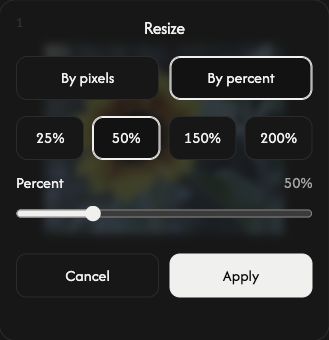
Choose the gear icon on a card to set a different size for that image.
Choose By pixels or By percent, set the size, then choose Apply to resize that image immediately. Cancel closes the settings without applying your changes.
Other images keep their settings. The main download action includes this individual result.
Resize and save
Choose Download or Download ZIP at the right end of the toolbar.
Images that still need resizing are processed, then saved automatically. One image saves as a file; multiple images save together as a ZIP. The input format is preserved, including GIF animation. Each card shows the original and result dimensions.
A card’s download icon saves its current result. Before that image has been resized, this icon saves the original.
Add, arrange, or remove images
Use + or Add images to add files without changing existing images. New images use the current global settings. The replacement icon changes one card’s image and applies the current global settings to it.
Drag a card to reorder the list. Its image, settings, and result move together.
Use × on a card to remove that image. The trash icon removes all images after confirmation.
Start the next task
Reset, beside the trash icon, keeps the files and their order, clears results, and restores Percent 50%. Save any results you want to keep first.
If something goes wrong
If a file cannot be opened, choose another image. If resizing fails, adjust that image’s size and try Apply again, or replace it. If ZIP creation fails, available results can still be saved using the cards’ download icons.