


Add Text & Watermark
Add text or a watermark to your images.
or drop images here
Supports JPEG, PNG, WebP, AVIF, and HEIC/HEIF · Up to 32 MiB per file
How to Use Add Text & Watermark
Choose your photos
Choose Select images or drop up to 20 still JPEG, PNG, WebP, AVIF, or HEIC/HEIF images. Each file can be up to 32 MiB. Your photos stay in your browser.
Add text or an image watermark
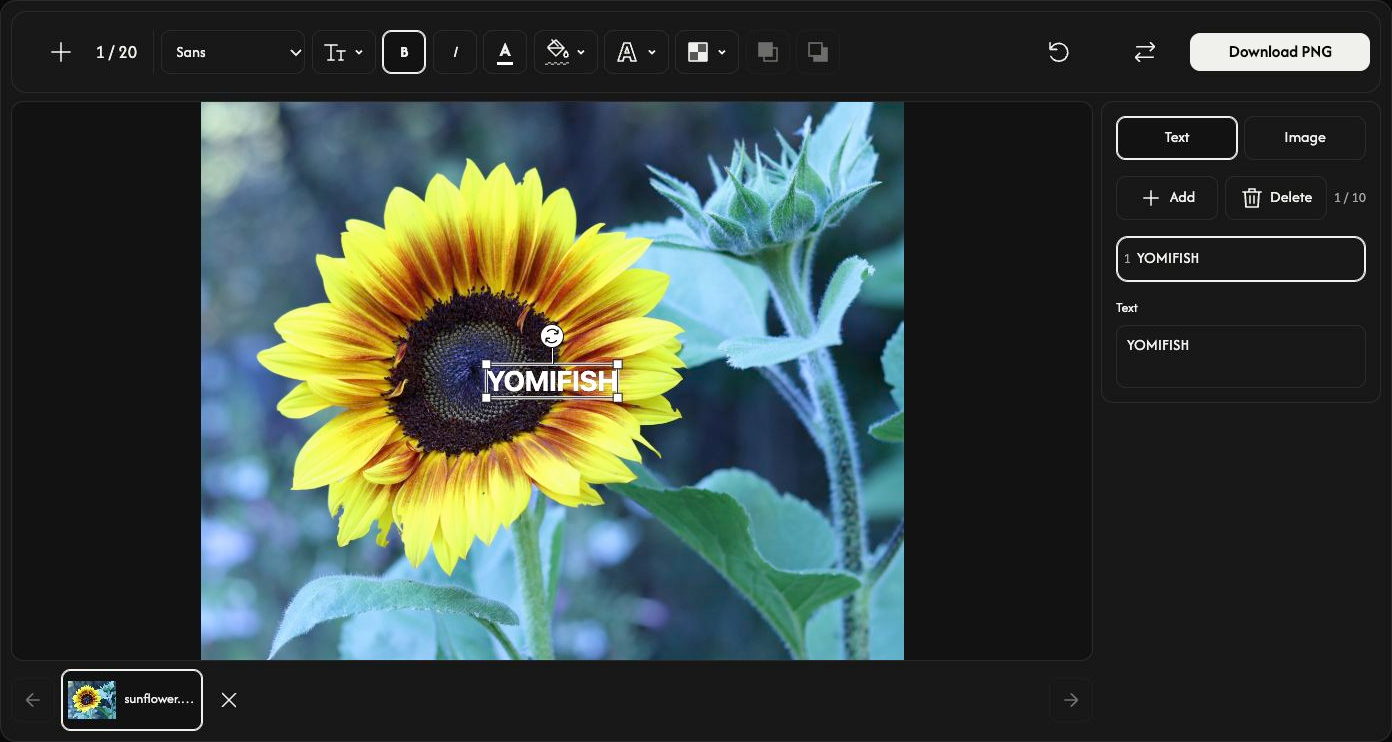
Choose Text or Image, then use the add button. Write your text or choose a logo image up to 20 MiB. Select a layer to edit it. You can add up to 10 text layers and 5 image layers; the same layers apply to every photo.
On PC, use the top toolbar to change text font, size, bold, italic, text color, background color or no background, outline and opacity. Image layers offer width, opacity and rounded corners. Edit text and choose layers in the right panel.
Position layers and check each photo
Drag the selected layer to move it, drag a corner to resize it, or drag the round handle to rotate it.
Use Bring to front or Send to back to place the selected layer above or below all other layers. Text and image layers share one stacking order.
Select a thumbnail to check that photo. + adds photos, Replace replaces the selected photo, and × removes it. Delete removes the selected layer.
On PC, Reset removes all text and image layers while keeping your photos.
Save PNG files
Choose Download PNG for one photo or Download ZIP for several. The ZIP contains one PNG per photo at its original dimensions. Your original files are unchanged.
The download button is above the preview. Keep the page open until saving finishes.
Add at least one visible text or image layer to enable downloading.
If something goes wrong
If a file is rejected, check its filename and the short reason shown. Valid photos are kept. Save before refreshing or closing the page: your editing session is cleared.