How to Use AI Upscaler
Choose an image
Choose Select an image, or drop one still JPEG, PNG, or WebP image into the panel. Files can be up to 50 MB. Animated images and other formats are not supported.
AI processing starts automatically and doubles both the width and height. Wait for the result before comparing or downloading. Your image is processed in your browser.
Compare the result
Drag the divider to compare Before on the left with After on the right. Compare switches between the comparison and the result alone. You can also focus the divider and use the arrow keys.
Changing the preview does not change the saved image or run AI again.
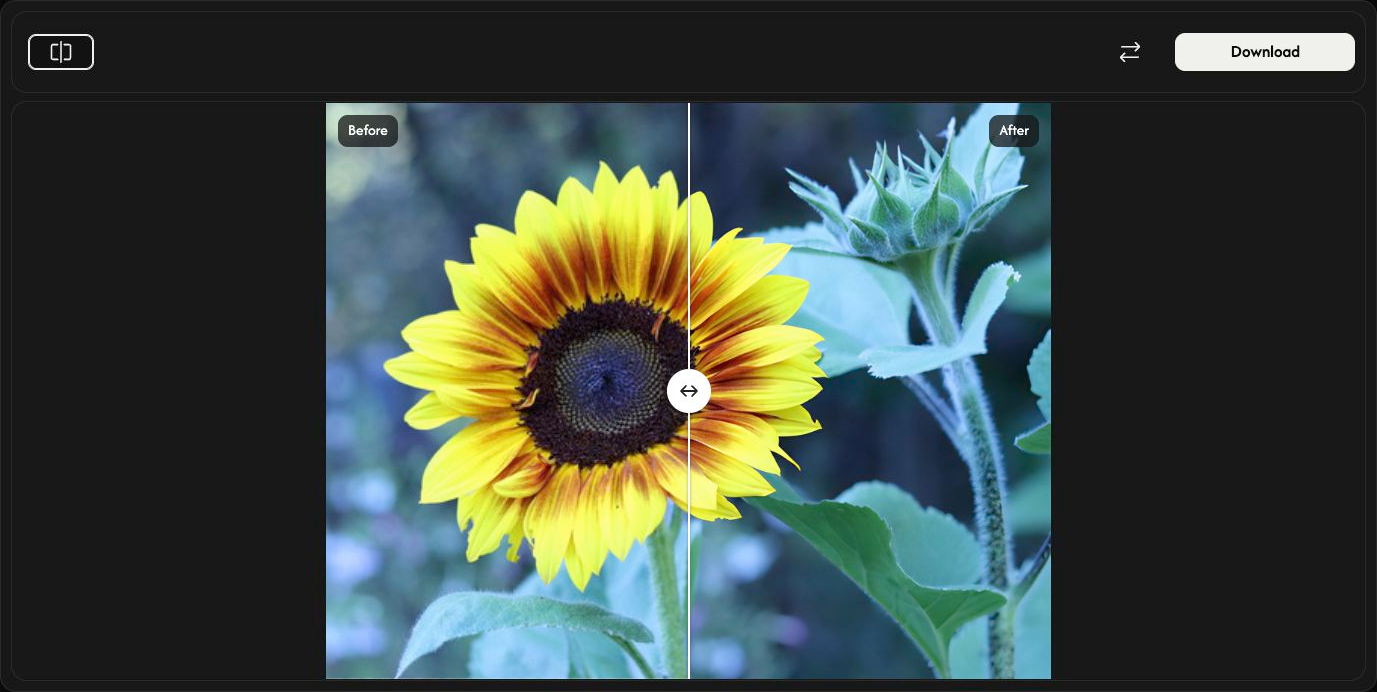
Save the enlarged image
Choose Download at the right of the toolbar and wait for the browser download to finish.
The image is saved at 2× its original width and height in the same format: JPEG, PNG, or WebP. PNG and WebP keep transparency. Your original file is unchanged.
Choose another image
Use Replace to select another image. It is enlarged automatically. Save the current result first if you want to keep it.
Cancel stops processing. For the first image, this returns to the selection panel. During replacement processing, the new original remains but there is no result to download; choose an image again to restart.
If something goes wrong
Follow the displayed message and choose a supported or smaller image. Cancelling the file chooser or selecting an invalid replacement keeps the existing image and result. Drop only one image at a time.