How to Use Thumbnail Maker
Choose your starting point
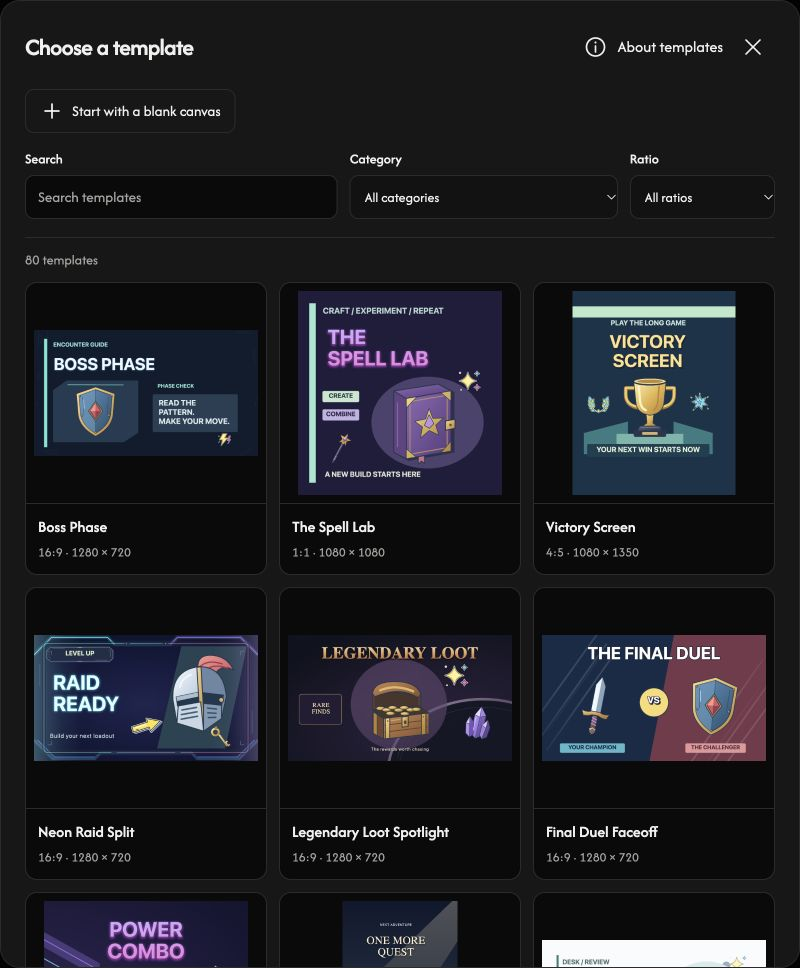
Choose Select an image to use your own background, or open Select thumbnail template. In the template picker, choose a design or Start with a blank canvas.
Use still JPEG, PNG, WebP, AVIF or supported HEIC/HEIF images, up to 40 MiB per file. Animated images are not supported.
Set up the canvas and background
Open Canvas to choose a Platform preset or enter Width and Height. Starting with Select an image makes that image the background, separate from image layers. If there is no background, choose Upload background image.
Fit shows the whole background; Fill fills the canvas and may crop its edges. Turn on Edit background to move, resize or rotate it. Turn it off to lock its current placement.
Add text, images and elements
Open Objects, choose Text, Image or Elements, then Add. You can add up to 10 text layers, 10 image layers and 20 elements. The background does not count toward these limits.
Select a template photo and choose Add your image. For an uploaded image layer, Replace image changes only that layer. The toolbar’s Replace button changes the background.
Make the design your own
Double-click text on the canvas to select its words and type, or edit the Text field in the panel. Select a layer to adjust its appearance with the toolbar.
Drag a layer to move it. Drag its corner handles to resize its area and its rotation handle to turn it. Change letter size with the text-size control.
Save your thumbnail
In Canvas, choose PNG, JPG, WebP or AVIF under Output format. Use the download button to save at the canvas dimensions. Exports use maximum quality; JPG places transparent areas on white.
If an image cannot be opened
Check the filename and reason shown, then choose a supported image within 40 MiB. A rejected replacement keeps the current image and edits.