How to Use Profile Picture Maker
Choose your photo
Choose Select an image and open one still JPG, PNG or WebP, up to 40 MiB. The background is removed automatically. You can also use a cutout photo with a transparent background.
Choose Cancel while the photo is opening or being processed to stop.
Choose a background
Browse Backgrounds and select a preview. There are 500 backgrounds in 10 categories; Featured shows 50 selections.
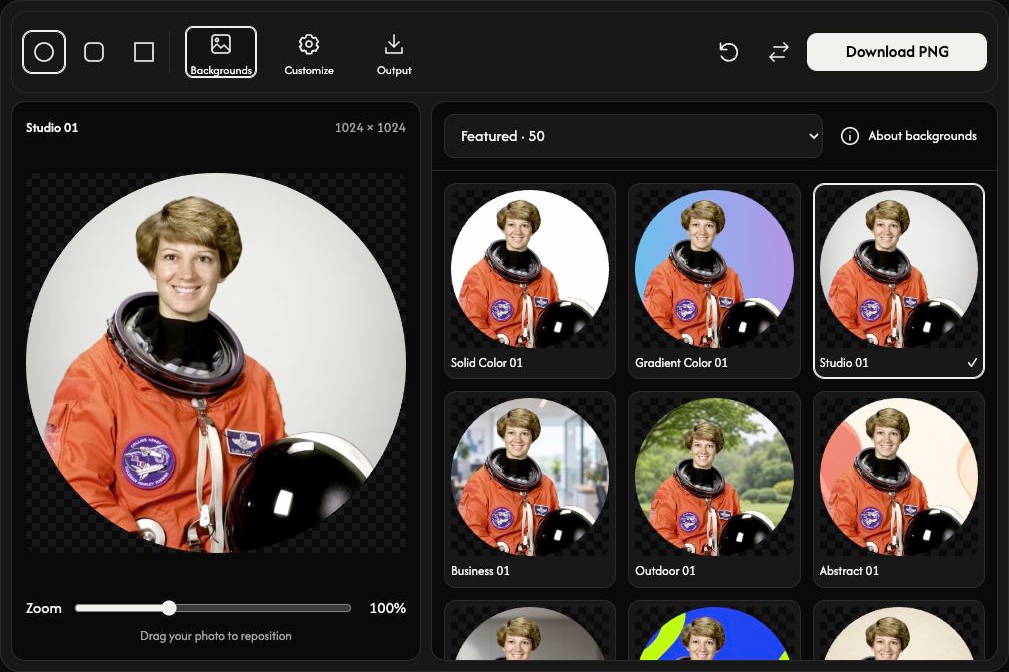
Adjust the shape and framing
Choose Circle, Rounded or Square. Drag your photo to position it and adjust Zoom. The default is a circle at 100% zoom.
Make it your own
Open Customize to upload a background, adjust available background colors, add a border or choose a filter.
Use Upload Background Image for your own still JPG, PNG or WebP, up to 40 MiB. It fills the frame without stretching, so its edges may be cropped. You can replace or remove it. After switching to a preset, choose Your background to use your uploaded background again.
Save your profile picture
Open Output, choose 512 × 512 or 1024 × 1024 and PNG or WebP, then choose Download. The default is 1024 × 1024 PNG.
Both formats preserve transparency outside a circle or rounded corners. The checkerboard is only a preview and is not saved.
Replace a photo or recover from an error
Use Replace for another photo. A rejected photo or background leaves the previous result and edits intact. Read the filename and reason, then select a supported file. On larger screens, Reset restores the editing defaults while keeping your photo.