How to Use Meme Maker
Choose one image
Choose Select an image, or drop an image into the upload panel.
JPEG, PNG, GIF, WebP, AVIF, and HEIC/HEIF are supported, up to 32 MB per file. Animated GIFs keep moving.
Start from a template
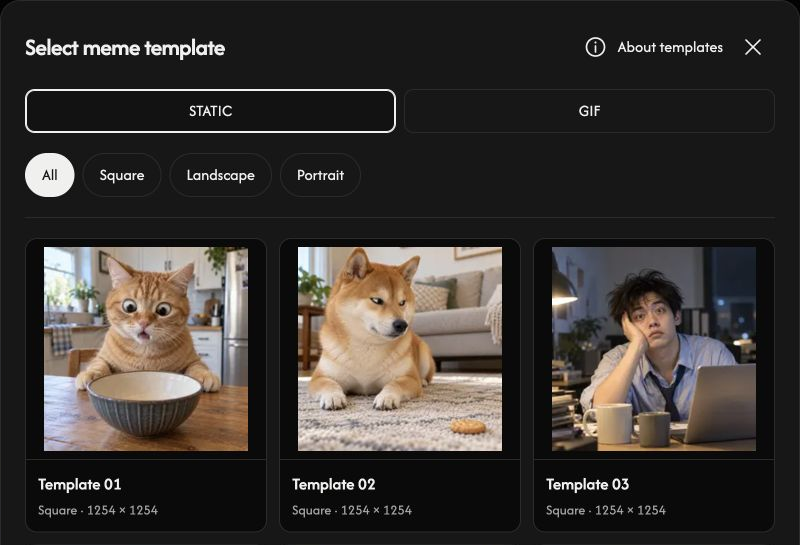
Open Select meme template. Choose STATIC or GIF, then filter by All, Square, Landscape, or Portrait. Select a card to open it in the editor.
The ⓘ beside About templates opens usage and source information. Expand C2PA Provenance Details, then a format and shape group, to see original filenames and recorded manifest IDs.
Edit your captions
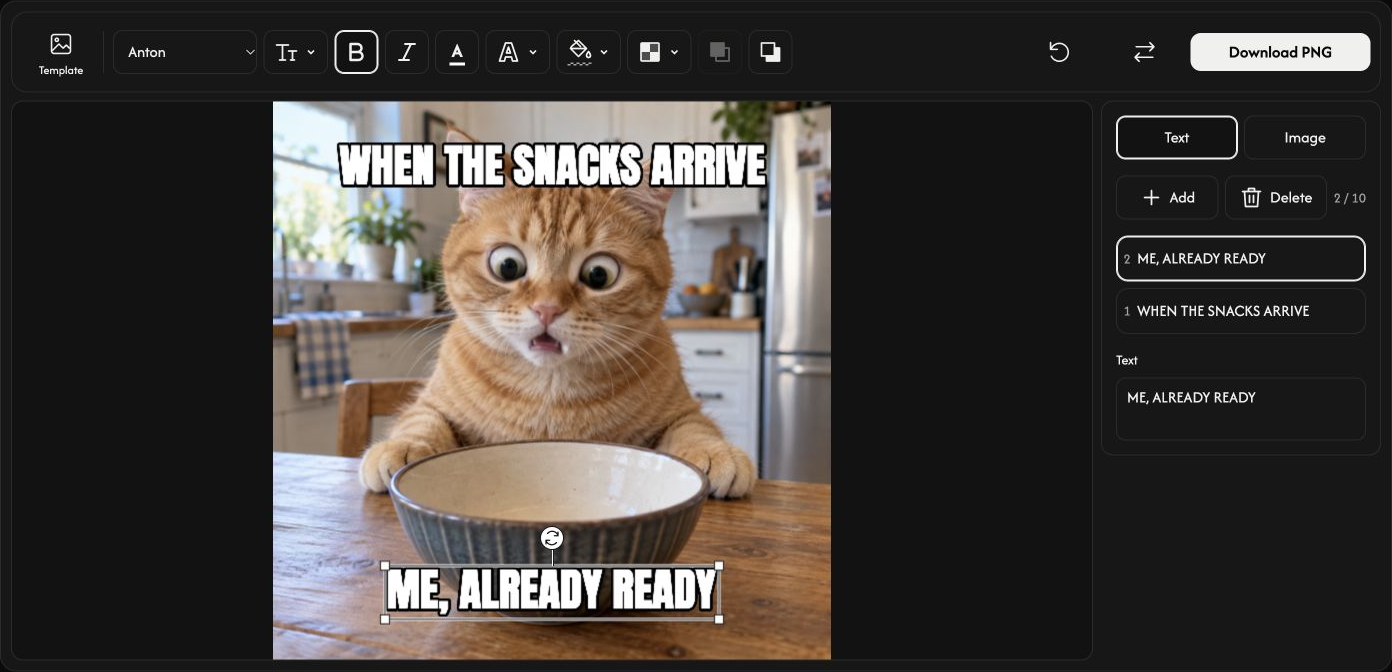
Start with the top and bottom captions. Select a text layer, or use Add Text to add another. You can have up to 10 text layers.
Edit the text field on the right. The top toolbar has Font, Size (%), Bold, Italic, Text color, Outline, Background color, and Opacity. No background removes the text background.
Add an image layer
Open Image and choose Add Image to add a logo or another image, including a GIF. You can have up to 5 image layers, up to 32 MB each.
Use Width (%), Opacity, and Rounded corners in the top toolbar.
Drag text or images to move them. Use the corner handles to resize and the round handle to rotate.
Bring to front and Send to back control which text or image appears above the others.
Save your meme
Still compositions save as PNG. A GIF source or animated image layer saves as GIF with animation. The button shows the output format.
Choose Download PNG or Download GIF at the right end of the toolbar.
During preparation, Cancel stops processing. Keep at least one visible text or image layer to enable downloading.
Replace or clear edits
Replace changes the base image and keeps your layers. The trash icon deletes only the selected text or image layer.
Reset keeps the base image and removes all text and image layers.
If a file cannot be opened
Check the filename and reason shown, then choose a supported file within 32 MB. A rejected replacement keeps your current image and edits.