How to Use Image to PDF
Choose your images
Choose Select images, or drop images into the panel. Add up to 50 JPEG, PNG, WebP, AVIF, or HEIC/HEIF files, up to 50 MB each. Animated images and PDF files are not supported.
Wait for the images to open. Each image becomes one PDF page. Unsupported or unreadable files do not take up a slot.
Arrange your pages
Drag a card to its new position to change the PDF page order.
The curved arrow on a card rotates that image clockwise by 90°. Check the page numbers and previews before saving.
Choose the page size
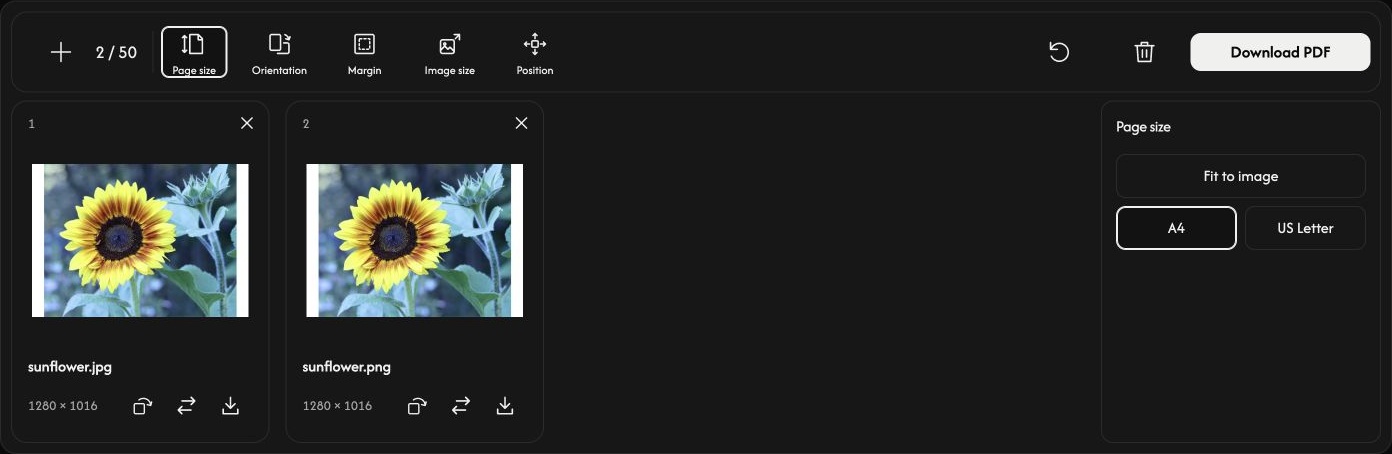
Choose Page size in the toolbar. Options open beside the page previews and apply to every page.
The default Fit to image sizes each page to its image. Orientation, Image size, and Position are disabled in this mode; Margin can still add space around the image.
Choose A4 or US Letter for standard paper. Set Orientation to Auto, Portrait, or Landscape. Auto chooses the direction separately for each image, including its rotation.
Adjust the space around each image
Margin offers None, Small, or Large. The previews update as you change the settings.
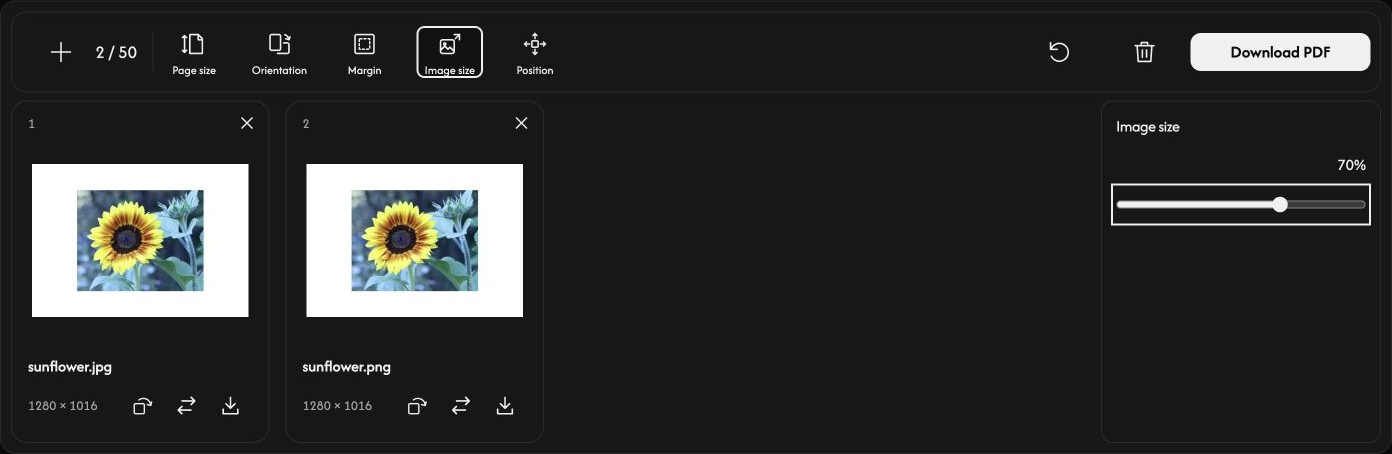
With A4 or US Letter, Image size adjusts the image from 10–100% of the space it can fit into inside the margins. The image keeps its proportions. This percentage is not a change to the original file’s pixel dimensions.
Use Position to place the image at the center, an edge, or a corner. A smaller image size makes the surrounding space and position easier to see.
Save your PDF
Choose Download PDF at the right end of the toolbar.
All pages are converted and saved together as one PDF in the order shown, using the current settings and rotations. A card’s download icon saves only that page as a separate PDF.
If your browser opens a PDF preview instead of saving immediately, use its download or share control to save the file.
Add or change images
Use + or Add images to append images while keeping the current page settings. The replacement icon changes one image in the same position; that image’s rotation returns to its starting direction.
Use × on a card to remove that page. The trash icon removes all images after confirmation and keeps the page settings. Your original files remain on your device.
Reset, beside the trash icon, keeps the images and their order, restores the default page settings, and resets all rotations.
If something goes wrong
If an image cannot be opened, replace it with a supported image. If PDF creation fails, follow the displayed message, use fewer or smaller images if needed, then try Download PDF again.