How to Use GIF Maker
Choose your images
Choose Select images or drop 2–50 still JPEG, PNG, WebP, AVIF, or HEIC/HEIF images. The limit is 20 MiB per file and 200 MiB in total. Processing stays in your browser.
Arrange the frames
Drag a frame card to change its position. The numbered order is the GIF playback order.
+ adds images; × removes a frame. Replacing an image keeps its position and delay.
Set the timing and loop
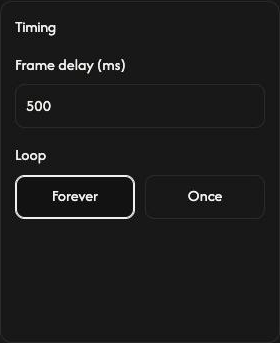
Open Timing and set Frame delay (ms) for all frames. 500 ms means half a second per frame.
Under Loop, Forever repeats continuously and is the default. Once plays the whole sequence once and stops on the last frame.
Change one frame’s duration
Open the settings button on a frame, change its delay, then choose Apply. Cancel keeps the previous value.
Set the common delay first, then individual delays. Changing the common Timing delay later replaces all individual delays.
Adjust the canvas
In Canvas, First image bases the size on the first frame; Largest uses the greatest image width and height. Custom lets you set Width (px) and Height (px). Images fit without cropping. Large sizes may be reduced automatically.
For Background, choose Solid color and a color, or Transparent to leave the empty areas transparent.
Save your GIF
Choose Download GIF to create and save one animated GIF. Keep the page open until it finishes. The small download icon on each frame saves that original image instead.
Download GIF is above the frame list. Your original files are unchanged.
If something goes wrong
If a file is rejected, follow the reason and action shown. Save your GIF before leaving: refreshing or closing the page clears the frames.