How to Use Crop
Choose an image
Choose Select an image, or drop one still JPEG, PNG, WebP, AVIF, or HEIC/HEIF image into the panel. The limit is 50 MB per file. Your image stays in your browser.
Choose a shape and ratio
Open Shape. Choose Rectangle and FREE to set width and height separately, or choose a fixed ratio such as 4:3. Circle keeps a round area.
For an irregular shape, choose Lasso and drag around the area to keep. Release to close the outline. Drawing again replaces the outline.
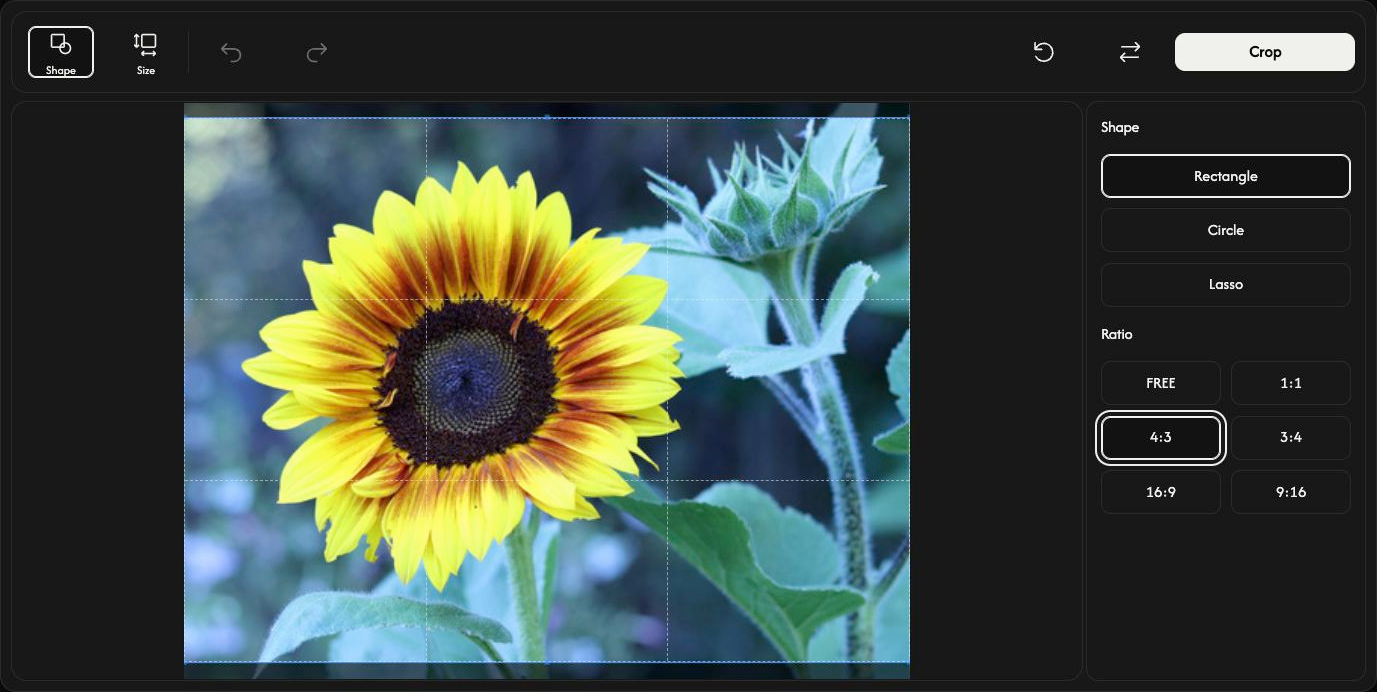
Adjust the area to keep
Drag inside the rectangle or circle to move it. Drag its edge or corner handles to resize it. The image itself stays in place.
For exact values, open Size. X and Y set the starting position; width and height set the crop size in pixels. A fixed ratio links width and height. Close Size to resize with the handles again. Size controls are unavailable for Lasso.
Preview the crop
Choose Crop to see the result. The same button changes to Download. Undo returns to editing; Redo restores the applied crop. Reset keeps the image and restores the starting selection and settings.
Save your image
Choose Download at the right of the toolbar and wait for the browser download to finish. Use Replace to choose another image after saving.
The output format is chosen automatically. JPEG becomes PNG when you choose Circle or Lasso, so the area outside the shape stays transparent. HEIC/HEIF becomes JPEG, or PNG if it has transparency. PNG, WebP, and AVIF keep their formats. The original file is unchanged.
If something goes wrong
Follow the cause and action in the displayed message. Choose only one supported still image at a time. Cancelling the file chooser or choosing an invalid replacement keeps your current image. Save the result before leaving the page.