How to Use Collage Maker
Choose your photos
Choose Select images or drop still JPEG, PNG, WebP, or HEIC/HEIF images into the panel. Use 2–20 photos for a complete collage, up to 50 MB per file. The + button adds more photos. Processing stays in your browser.
Choose a layout
In Layout, set Photos to 2–20 and choose an arrangement. Reducing the count keeps extra images in Unplaced photos. Use Add to empty cell to put one back. Unplaced photos are not included in the download.
Adjust the canvas
Open Canvas to change Padding, Gap, and Background. More settings contains Rounded corners and Transparent background. Turning on transparency selects PNG; JPG cannot keep transparency.
Edit an individual photo
Select a cell to open Photo. Fill covers the cell and may crop the edges; Fit shows the whole image. Adjust Photo zoom from 100–400%. Switching these options resets zoom and position.
Replace changes the photo. Swap, then another cell, exchanges their photos. Clear empties the cell and keeps its photo in Unplaced photos. Undo and Redo step through your edits.
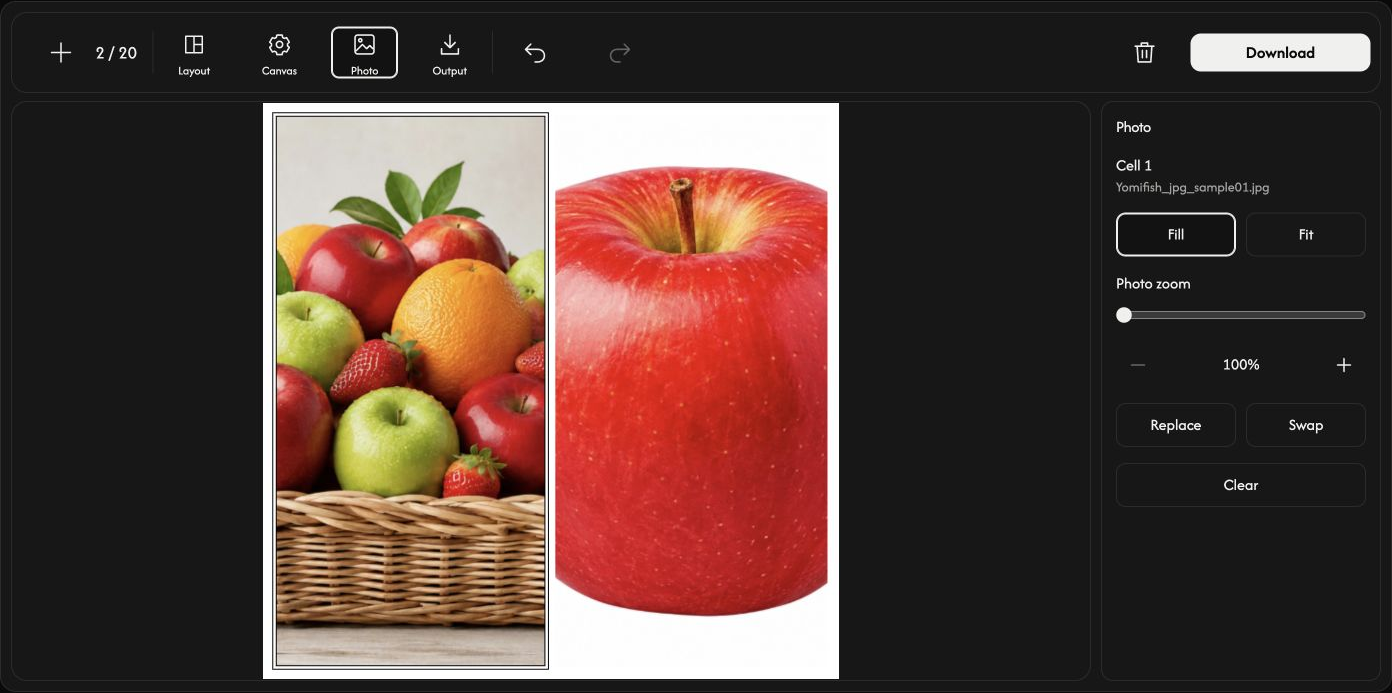
Move the photo inside its cell
Drag the selected photo with the mouse. Movement is limited to directions where the photo extends beyond the cell.
Save one collage image
In Output, choose a ratio and JPG, PNG, WebP, or AVIF. Each side must be a whole number from 256–4096 px. Fixed ratios calculate the height; Custom lets you set both sides. Fill every cell before downloading.
Choose Download at the right of the toolbar. The photos are combined into one image; the original files are unchanged.
If something goes wrong
Follow the cause and action in the displayed message. Cancelling the file chooser or choosing an invalid replacement keeps the current photo. Save your collage before leaving the page.