How to Use Blur & Pixelate
Open one image
Choose Select an image, or drop one still JPEG, PNG, WebP, AVIF or HEIC/HEIF image into the upload area. The limit is 40 MiB per image. Animated images and SVG are not supported.
Choose the area
Open Area and choose Full range for the whole image, Rectangle for a rectangular selection, Circle for a circular selection, or Brush to paint an area. The initial mode is Circle, with no selection active. Open Area to activate the selection before editing it.
For a rectangle or circle, drag inside the outline to move it and drag its handles to resize it. On phones and desktop, select the mode from the Area dropdown; tablets show four buttons.
Paint a selection with Brush
With Brush selected, Brush size changes the stroke width and Brush softness softens its edges. The defaults are 5% size and 25% softness. Paint over the area you want to process; use Clear brush to erase the current brush selection without undoing effects already applied.
Brush color changes only the visible selection overlay, not the saved image. Choose a color in the popover on desktop or tablets. On phones, the color dialog offers Grid, Spectrum and Sliders.
Set the effect and strength
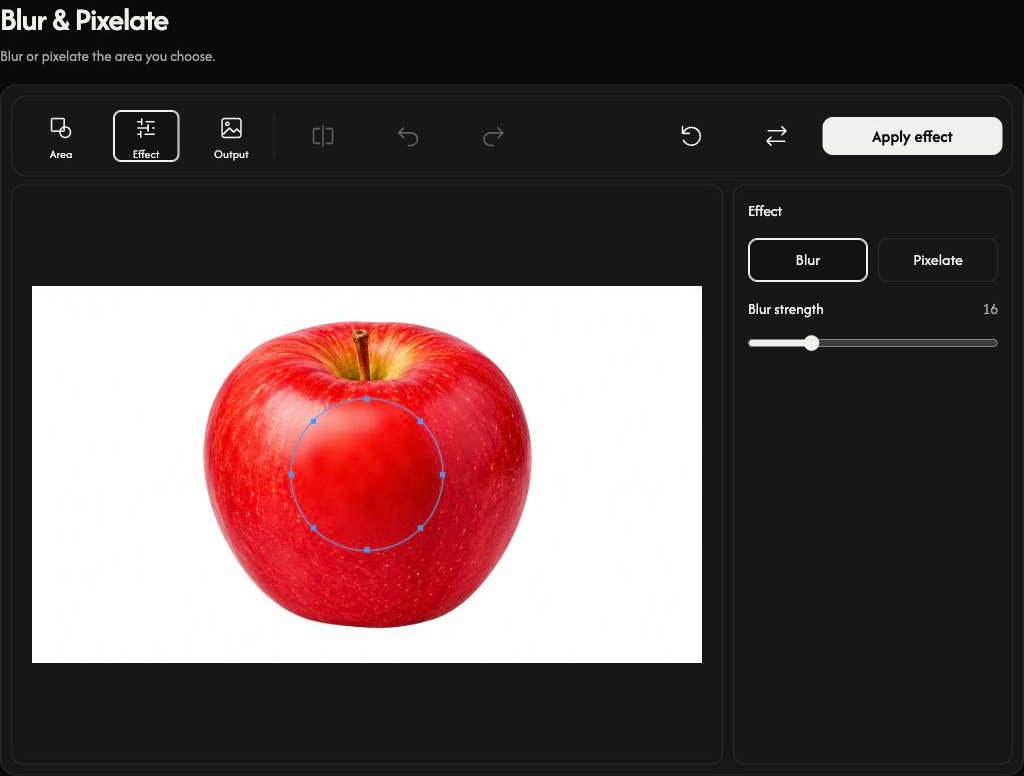
Open Effect. Blur softens detail; increase Blur strength for a stronger blur. Pixelate replaces detail with blocks; increase Pixelation strength for larger blocks. The default is Blur with strength 16.
On desktop, settings appear in the panel beside the preview. The toolbar contains Area, Effect and Output, followed by comparison and editing actions.
Apply and review
Choose Apply effect to commit the preview. The button changes to Download when processing finishes. Open Area again to add another effect on top of the current result. Each application is a separate editing step.
Undo removes the last applied step and Redo restores it. These buttons follow applied effects, not every adjustment to the current selection.
On desktop, Before & After compares the original with the applied result. Drag the divider to inspect both sides; this comparison is not saved.
Choose the format and save
Open Output. Preserve input format is selected by default. You can instead choose JPG, PNG, WebP or AVIF. Then choose Download to save the current applied result. Selection outlines and the brush overlay are not saved.
Preserving the input format keeps JPEG, PNG, WebP or AVIF as that format; the edited image is re-encoded. HEIC/HEIF saves as JPG, or PNG when the image has transparency.
Output uses maximum quality at the original image dimensions. PNG, WebP and AVIF preserve transparency; JPG uses a white background for transparent areas. Review the result before sharing: blur and pixelation do not guarantee anonymization.
Replace, reset or recover
Use Replace for another image; on phones this is New Image. A successful replacement starts a new edit. Reset keeps the current source image and removes all applied effects, restoring Circle with no active selection, the default effect and brush settings, and Preserve input format.
Use Cancel while an image opens or an effect is being applied or restored to stop it. A rejected or cancelled replacement keeps your previous image and edits. If a file is rejected, read its filename and reason, then choose a supported image within the limit. If the brush selection is too complex, use Clear brush and paint it again.