How to Use Sharpen
- 01
Open one image
Choose Select an image, or drop one still JPEG, PNG, WebP, AVIF or HEIC/HEIF image into the upload area. The limit is 40 MB. Animated images and SVG are not supported.
Opening an image automatically sharpens it at 40%. Sharpening an image... appears during processing. When ready, the selected and applied strengths both show 40%, and Download is available.
- 02
Choose a strength
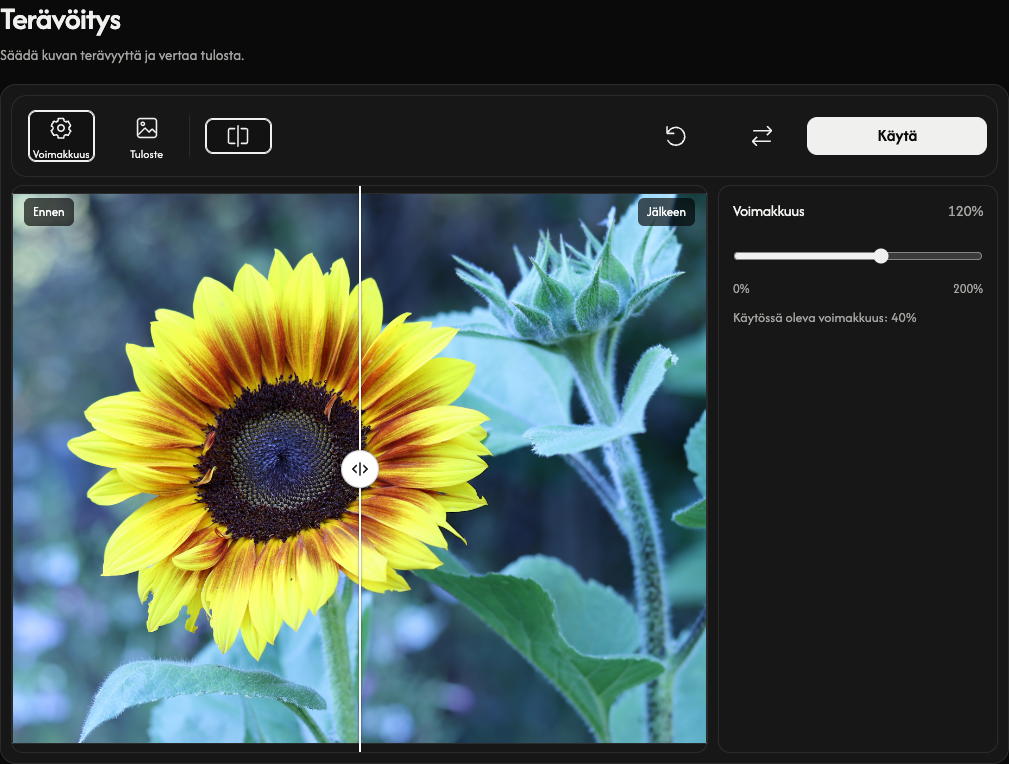
Move Strength from 0% to 200%. The number beside the heading is your selection; Applied strength: below the slider shows the current result. Moving the slider alone does not change the image. Here, 120% is selected while 40% is still applied.
On desktop, Strength and Output open the side panel. Select the active button again to close it. Comparison, Reset, Replace and the main action are in the top toolbar.
- 03
Apply the change
When the selected strength differs from the applied strength, Apply replaces Download. Choose Apply to update the result from the original image. When finished, the applied value updates and Download returns. Returning the slider to the applied value needs no new application.
Applying 0% shows the original image and disables downloading. Select a strength above 0% and apply it, or use Reset to return to 40%.
- 04
Compare the result
Use Before & After to show or hide the comparison.
Drag the divider to inspect the original and the applied result. You can also focus the divider and use the arrow keys. Comparison does not change the saved image.
- 05
Choose the output format
Open Output and choose Preserve input format, JPG, PNG, WebP or AVIF. These settings affect the download; they do not apply a pending strength change.
Preserving the input format saves JPEG, PNG, WebP and AVIF in the same format. HEIC/HEIF saves as JPG, or PNG if the image has transparency.
For a transparent image saved as JPG, JPG background fills transparent areas; white is the default. Open its swatch to choose a color, adjust the color area or hue, or enter RGB, HSB or HEX values. The eyedropper is available in supported browsers. PNG, WebP and AVIF keep transparency.
- 06
Save the image
Choose Download to save one image at the original dimensions and maximum quality. Apply any pending strength change first. Your image is processed in your browser.
Replace, reset or recover
Reset keeps your source image and restores 40%, Preserve input format and the white JPG background. Use Replace for another image, or New Image on phones and portrait tablets. A successful replacement starts at 40%.
Use Cancel while an image opens to stop it. A rejected or cancelled replacement keeps your previous image and edits. If an error appears, follow its message; Retry preview retries a missing preview when offered. The error's close button dismisses the message.